Connect PDF.co with Autocalls.ai AI voice agents
Turn call outcomes into updated PDFs, extracted data, and ready-to-send documents. Connect PDF.co with AI voice agents to cut admin work after every conversation.
After each AI call, PDF.co can add text, images, or barcodes to PDFs so your team finishes paperwork without manual edits.
It is ideal for appointment booking and AI answering service workflows where every call needs a clean document record.
Extract plain text, tables, or structured JSON, CSV, and XML from PDFs right after an AI conversation to keep records current and searchable.
This helps teams connect call results with integrations and improve AI call center automation without copy-pasting data.
Create polished PDFs from HTML, update existing files, or replace text automatically when your voice agent completes a call or collects new details.
This is a strong fit for AI virtual receptionist and white-label platform setups that need branded documents delivered fast.
Get a hands-on experience by trying a free demo call. Fill in your details, and our AI representative will call you instantly.
Try now a free AI call✓ No credit card required ✓ No commitment
Powerful actions you can trigger with PDF.co to automate your workflows
Adds text to PDF.
URL of the PDF file to modify.
Specify page indices as comma-separated values or ranges to process (e.g. "0, 1, 2-" or "1, 2, 3-7").
Desired name for the output PDF file (e.g., "result.pdf").
Set the expiration time for the output link in minutes (default is 60 i.e 60 minutes or 1 hour).
Password if the source PDF is protected.
HTTP auth password if required to access source url.
HTTP auth username if required to access source url.
Add image to a PDF document.
URL of the PDF file to modify.
Specify page indices as comma-separated values or ranges to process (e.g. "0, 1, 2-" or "1, 2, 3-7").
Optional width for the image on the PDF (in points). Aspect ratio is kept by default.
Optional height for the image on the PDF (in points). Aspect ratio is kept by default.
Desired name for the output PDF file (e.g., "result.pdf").
Set the expiration time for the output link in minutes (default is 60 i.e 60 minutes or 1 hour).
Password if the source PDF is protected.
X coordinate (from top-left corner) to place the image.
Y coordinate (from top-left corner) to place the image.
HTTP auth password if required to access source url.
HTTP auth username if required to access source url.
Generate a barcode image and add it to a specific location on a PDF.
X coordinate (from top-left corner) to place the barcode.
Y coordinate (from top-left corner) to place the barcode.
Comma-separated page numbers or ranges to add the barcode (e.g., "0,2,5-10"). Leave empty for all pages.
Optional width for the barcode image on the PDF (in points). Aspect ratio is kept by default.
Optional height for the barcode image on the PDF (in points). Aspect ratio is kept by default.
Desired name for the output PDF file (e.g., "result.pdf").
Set the expiration time for the output link in minutes (default is 60 i.e 60 minutes or 1 hour).
Select the type of barcode to generate.
Password if the source PDF is protected.
The text or data to encode in the barcode.
HTTP auth password if required to access source url.
HTTP auth username if required to access source url.
URL of the PDF file to add the barcode to.
Convert HTML code into a downloadable PDF document.
The HTML code to convert to PDF.
Desired name for the output PDF file (e.g., "result.pdf").
HTML content for the page footer.
HTML content for the page header.
CSS style margins (e.g., "10px", "5mm 5mm 5mm 5mm" for top, right, bottom, left).
JSON object for additional configurations.
CSS media type to emulate.
Select a paper size. For custom sizes, input the value directly (e.g., '200mm 300mm') if your desired size isn't listed. Refer to PDF.co docs.
Set the expiration time for the output link in minutes (default is 60).
Set page orientation.
Set to true to print background graphics and colors (default is true).
Extracts plain text content from a PDF document.
URL of the PDF file to extract text from.
Comma-separated page numbers or ranges (e.g., "0,2,5-10"). Leave empty for all pages.
Password if the source PDF is protected.
Desired name for the output PDF file (e.g., "result.pdf").
HTTP auth password if required to access source url.
HTTP auth username if required to access source url.
Extracts table data from a PDF using a predefined PDF.co Document Parser template.
URL of the PDF file to extract tables from.
Comma-separated page numbers or ranges (e.g., "0,2,5-10"). Overrides template settings if provided.
Desired name for the output PDF file (e.g., "result.pdf").
JSON object for additional configurations.
Set the expiration time for the output link in minutes (default is 60 i.e 60 minutes or 1 hour).
The ID of your Document Parser template (created in PDF.co dashboard) designed to extract the table(s).
Password if the source PDF is protected.
HTTP auth password if required to access source url.
HTTP auth username if required to access source url.
Search for specific text or patterns in a PDF and replace it with new text.
URL to the source PDF file.
Comma-separated page numbers or ranges (e.g., "0,2,5-10"). Leave empty for all pages.
Set to true to use regular expressions for search texts.
Desired name for the output PDF file (e.g., "result.pdf").
Set the expiration time for the output link in minutes (default is 60 i.e 60 minutes or 1 hour).
Password if the source PDF is protected.
HTTP auth password if required to access source url.
HTTP auth username if required to access source url.
Set to true for case-sensitive search, false otherwise.
Convert PDF content into structured formats (JSON, CSV, or XML).
URL of the PDF file to convert.
Language for OCR if processing scanned documents (e.g., "eng", "deu", "eng+deu"). See PDF.co docs for list.
Comma-separated page numbers or ranges (e.g., "0,2,5-10"). Leave empty for all pages.
Desired name for the output PDF file (e.g., "result.pdf").
JSON object for additional configurations.
Set the expiration time for the output link in minutes (default is 60 i.e 60 minutes or 1 hour).
Password if the source PDF is protected.
HTTP auth password if required to access source url.
HTTP auth username if required to access source url.
Select the desired structured output format.
Real-world examples of how businesses use PDF.co integration to automate workflows
Your AI voice agent finishes a customer call and sends the outcome to PDF.co. The PDF is updated with new text so your team has a ready-to-use record.
When a lead confirms interest by phone, PDF.co inserts a logo or product image into a document. This keeps follow-up files polished and consistent.
After a booking call, PDF.co adds a barcode to the customer PDF for tracking. Staff can scan the file later without searching manually.
Your agent collects details during a phone conversation and passes formatted HTML into PDF.co. A downloadable PDF is created instantly for internal use or customer delivery.
PDF.co pulls plain text from incoming PDFs so your AI caller can use the right context. This helps conversations stay accurate and relevant.
After a call, PDF.co converts PDF content into JSON, CSV, or XML for downstream systems. Your workflow stays organized without manual reformatting.
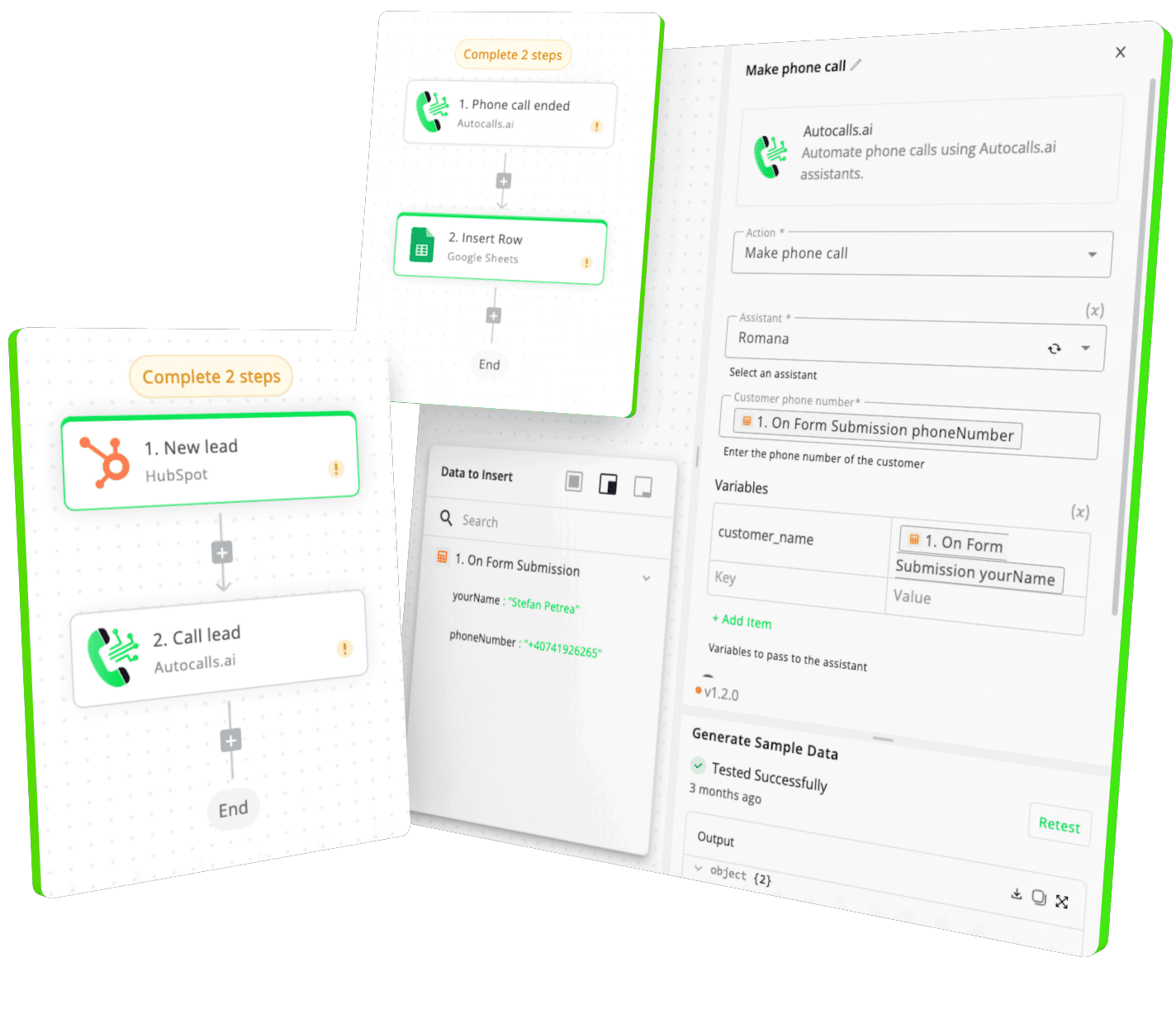
Easily manage AI voice agents without the need for programming skills.
Integrate with popular tools such as HubSpot, GoHighLevel, Zoho, Cal.com & +250 more and build automations using drag and drop.
+250 tools ready to integrate with your AI agents flow in our no-code platform, similar to Zapier or Make.
Have a question that is not answered? You can contact us at
Have a question? Contact usA PDF.co phone integration connects your AI voice workflows with PDF document actions. After calls, you can automatically update files, extract text, convert PDFs, and send structured data into the rest of your workflow.
A PDF.co auto dialer setup helps your calling process trigger document updates as soon as a conversation ends. That means less admin work, faster follow-up, and more consistent records across sales and support teams.
Yes. A PDF.co AI dialer workflow can extract plain text, tables, or structured JSON, CSV, and XML from PDFs so your team can act on call data faster. This is useful when agents need information from uploaded forms or existing customer files.
PDF.co phone automation can add text, insert images, place barcodes, or replace text inside PDFs based on what happened during a call. It helps teams complete paperwork quickly and keep every customer interaction documented.
With PDF.co call automation, you can generate PDFs from HTML, update service forms, extract data for reporting, and prepare branded files for the next step in the customer journey. It is especially useful for booking, support, onboarding, and document-heavy follow-up.
A PDF.co voice agent workflow lets your AI assistant handle the conversation while PDF.co handles the document tasks in the background. Together, they reduce manual processing and help your team move from call to completed paperwork much faster.
Join thousands of businesses already automating their phone calls with our
PDF.co integration.
You can get your assistant ready in few minutes.
The full path forward. Strategy, scripts, pricing, and the operating cadence agencies use to scale a white-label voice AI business. Free PDF, delivered to your inbox.