Connect Linka with Autocalls.ai AI voice agents
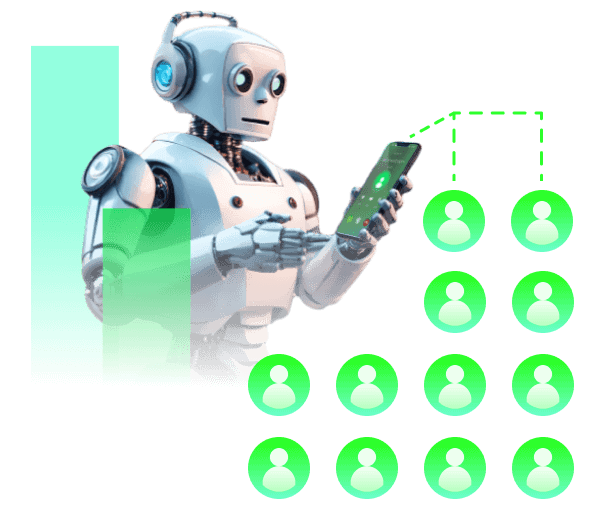
Connect Linka to AI voice agents that call leads, confirm payments, and update contacts automatically. Turn marketplace activity into faster sales conversations.
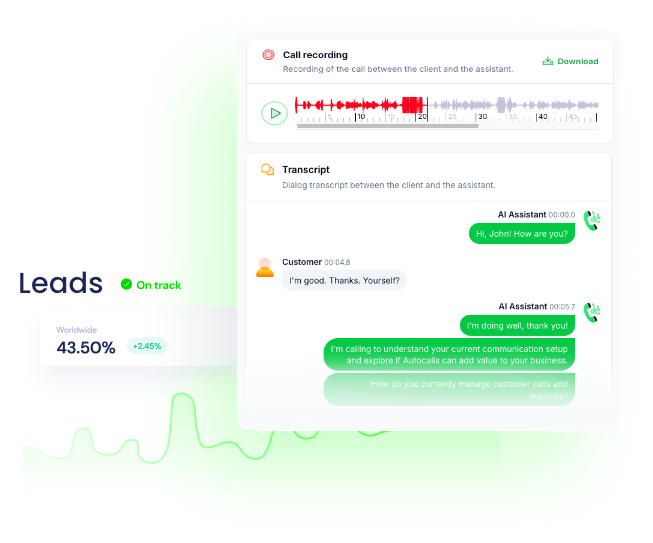
When a new lead appears in Linka, your AI voice agent can call in seconds, qualify interest, and capture the right details without manual follow-up.
It helps teams move prospects into appointment booking workflows faster while keeping contact records updated for better AI call center automation.
Trigger outbound AI calls after new payments or subscriptions so customers get instant confirmation, billing support, or next-step guidance without waiting for an agent.
This type of call automation reduces missed handoffs and supports upsell moments through your AI answering service and WhatsApp AI chatbot flows.
Your AI voice agent can add or update contacts, create products, and manage subscriptions after every conversation, so sales data stays accurate without extra admin work.
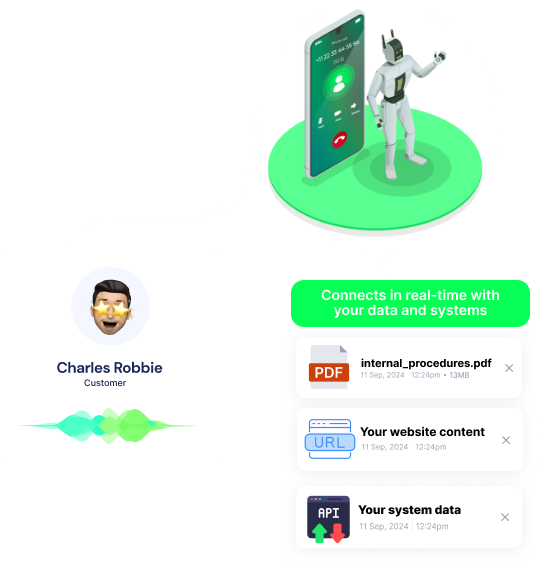
Pair phone integration with integrations and an AI virtual receptionist to handle inbound and outbound conversations from one workflow.
Get a hands-on experience by trying a free demo call. Fill in your details, and our AI representative will call you instantly.
Try now a free AI call✓ No credit card required ✓ No commitment
Powerful actions you can trigger with Linka to automate your workflows
Creates a new invoice in the CRM.
should be like this: 2024-06-11T11:11:41Z
Sperse Contact ID. Will be used for looking a client
External Contact Reference (ID) . Will be used for looking a client
Product Code. We will look up the product
Pass true if this is not actual transaction. Should be False by default
should be like this: 2024-06-11T11:11:41Z
Creates a new product in the CRM
Sku is the product code
Required for General and Digital Product Type
Required for General , Digital and Event Product Type
Required for all except LifeTime or OneTime plan
Required for General and Digital Product Type
Required for all except LifeTime or OneTime plan
Required for OneTime plan
Javascript and media tags are not allowed
Required for Custom or OneTime Plan
Get Contact Details
Id of the logged in user (not contact id)
Email of the logged in user
Creates a new contact.
Valid date format YYYY-MM-DD or MM-DD-YYYY.
The contact's social security number.
The contact's zip/postal code.
The contact's city of residence.
Additional notes about the contact
The contact's personal email.
The contact's additional email.
The contact's full street address (can include apartment or unit number).
The contact's state code.
The contact's 4-letter personality code.
The first page of visit through which the contact visited your website.
The contact's full name.
The company's industry.
The contact's job title.
Required if First Name and Company Name fields are empty.
The contact's nick name.
The contact's person photo URL.
The channel/medium the contact used to find your website.
Sperse Contact ID. Will be used for looking a client
The contact's country code.
Required if Last Name and Company Name fields are empty.
The contact's home phone number.
The contact's state of residence.
The contact's professional experience.
The first known source the contact used to find your website. You can set this automatically and update manually later.
The contact's middle name.
The title used to address the contact.
Additional information about the contact e.g PhD.
The webpage where the contact clicked a link that sent them to your website.
The contact's company website URL.
The contact's work email.
The contact's work/primary phone number.
Name of the contact's company (This field is mandatory if the First Name and Last Name fields are empty).
The contact's country of residence.
The contact's LinkedIn profile id.
The contact's mobile phone number.
Preferably, Sperse User Email should be passed as it is unique within Sperse account but User Name can be also passed
Valid date format YYYY-MM-DD HH:MM:SS. If date is defined then new Follow Up Task will be created for this contact
The affiliate/referer partner through which the contact signed up.
If "Yes", will try to find an existing record using Email and Full Name and update it.
Estimated deal/opportunity amount.
The contact's profile summary.
Creates a new subscription.
ContactXref have to be specified and correct to look up the correct contact
Product Code (Unique product identifier). ProductCode have to be specified and correct to look up the correct product
The chosen Period Type has to be set for the Product on Sperse side
Adds or updates a contact (extended version)
Valid date format YYYY-MM-DD or MM-DD-YYYY.
The contact's social security number.
String Value. Supports the following items: Yellow, Blue, Green, Purple, Red. Other values will be skipped.
Additional notes about the contact
The contact's personal email.
The contact's alternative personal email.
The contact's additional email.
This is the static array from 1 to 10
The contact's Zoom id.
The contact's 4-letter personality code.
The first page of visit through which the contact visited your website.
The contact's zip/postal code.
The company's industry.
The contact's job title.
Required if First Name and Company Name fields are empty.
The contact's nick name.
The contact's person photo URL.
The contact's work zip code.
The channel/medium the contact used to find your website.
Sperse Contact ID. Will be used for looking a client
Required if Last Name and Company Name fields are empty.
The contact's home phone number.
The contact's city of residence.
Code of subscription service from the Sperse CRM. Either Product Code and Payment Period Type or System Type and Code are required fields within Subscription 1.
Code of subscription service from the Sperse CRM. Either Product Code and Payment Period Type or System Type and Code are required fields within Subscription 2.
Code of subscription service from the Sperse CRM. Either Product Code and Payment Period Type or System Type and Code are required fields within Subscription 3.
The contact's work city.
If "Yes" then User will be created. Personal email will be used as User Name.
The contact's professional experience.
Pass yes if the client is employed in this Organization.
The first known source the contact used to find your website. You can set this automatically and update manually later.
The contact's middle name.
The title used to address the contact.
Additional information about the contact e.g PhD.
The webpage where the contact clicked a link that sent them to your website.
Code of subscription service level from the Sperse CRM.
The contact's Twitter profile id.
The contact's company website URL.
The contact's work email.
The contact's alternative work email.
The contact's other work email.
The contact's work phone number.
The contact's alternative work phone number.
Name of the contact's company (This field is mandatory if the First Name and Last Name fields are empty).
This is string external reference that can be passed during creation and then if sent again it will update the record.
Valid date format YYYY-MM-DD HH:MM:SS
Valid date format YYYY-MM-DD or MM-DD-YYYY
The contact's Facebook profile id.
The contact's full street address (can include apartment or unit number).
Possible values are: Yes, No. If nothing is chosen that means "Unknown".
The contact's LinkedIn profile id.
The contact's primary phone number.
The contact's work address.
The contact's AngelList profile id.
Preferably, Sperse User Email should be passed as it is unique within Sperse account but User Name can be also passed
Additional custom data for the contact record.
Valid date format YYYY-MM-DD HH:MM:SS. If date is defined then new Follow Up Task will be created for this contact
The contact's home phone number extension.
The contact's state code.
The contact's Instagram profile id.
Preferred Time of Day to contact with Client
Valid date format YYYY-MM-DD HH:MM:SS.
If password is not passed then it will be automatically generated.
The contact's work state code.
The affiliate/referer partner through which the contact signed up.
The contact's Google reviews.
The first page of visit through which the contact visited your website.
If "Yes", will try to find an existing record using Email and Full Name and update it.
If "Yes", will override lists of contact details in update mode instead of merging them - lists, tags, emails, phones, links, addresses, photos.
The contact's work phone number extension.
The contact's alternative work phone number extension.
The contact's country code.
The contact's state of residence.
Estimated deal/opportunity amount.
The contact's primary phone number extension.
The contact's profile summary.
Valid date format YYYY-MM-DD HH:MM:SS.
The contact's work country code.
The contact's work state.
Either Product Code and Payment Period Type or System Type and Code are required fields within Subscription 1.
Either Product Code and Payment Period Type or System Type and Code are required fields within Subscription 2.
Either Product Code and Payment Period Type or System Type and Code are required fields within Subscription 3.
The contact's country of residence.
If "Yes" then Welcome Email will be sent to the newly created user.
Product Code from the Sperse CRM. Either Product Code and Payment Period Type or System Type and Code are required fields within Subscription 1.
Product Code from the Sperse CRM. Either Product Code and Payment Period Type or System Type and Code are required fields within Subscription 2.
Product Code from the Sperse CRM. Either Product Code and Payment Period Type or System Type and Code are required fields within Subscription 3.
The contact's work country.
Valid date format YYYY-MM-DD or MM-DD-YYYY
If "Yes", will save the record even if there are some validation errors.
Affiliate Code is used for the current person detection as a source of new leads. Alphanumeric characters, underscore and hyphen are allowed.
Possible values are: Yes, No. If nothing is chosen that means "Unknown".
The chosen Period Type has to be set for the Product on Sperse side
Events in Linka that can automatically start your workflows
Triggers when a new lead is created
No additional configuration required
Triggers when a new payment is created
No additional configuration required
triggers when a new subscription is created
No additional configuration required
Real-world examples of how businesses use Linka integration to automate workflows
When Linka creates a new lead, an AI voice agent calls right away and qualifies interest. The system then adds or updates the contact so your team sees the latest details.
Every new payment in Linka can trigger an automated confirmation call to the customer. This reduces confusion and gives buyers immediate support after checkout.
A new subscription can launch an AI call that explains onboarding and next steps. The workflow also updates the subscription and contact record for future follow-up.
After an AI conversation, contact details can be pulled and enriched inside Linka automatically. This gives sales teams cleaner records before the next call or message.
Your team can create an invoice in Linka after a successful AI sales call. That shortens the gap between verbal agreement and payment collection.
AI calls can capture what product a prospect wants and push that into Linka as a new product or updated contact note. This helps teams track demand across storefront and community offers.
Easily manage AI voice agents without the need for programming skills.
Integrate with popular tools such as HubSpot, GoHighLevel, Zoho, Cal.com & +250 more and build automations using drag and drop.
+250 tools ready to integrate with your AI agents flow in our no-code platform, similar to Zapier or Make.
Have a question that is not answered? You can contact us at
Have a question? Contact usA Linka phone integration connects your marketplace or CRM activity with AI voice agents that can place and receive calls automatically. It helps you respond to leads, confirm payments, and update customer records without manual dialing.
A Linka auto dialer can trigger outbound calls the moment a new lead, payment, or subscription is created. This helps sales teams reach contacts faster, increase follow-up volume, and keep every conversation logged back into the CRM.
Yes. Autocalls is built for no-code automation, so you can connect Linka triggers and actions to AI calling flows without relying on developers. You can launch lead qualification, payment outreach, and subscription follow-ups quickly.
Linka phone automation can handle instant lead calls, payment confirmation calls, onboarding outreach for new subscriptions, and post-call CRM updates. It reduces repetitive admin work while giving customers faster responses.
Linka call automation makes sure every new lead or customer event can trigger a timely AI phone conversation. That means fewer missed opportunities, more consistent outreach, and better record accuracy after each call.
Yes. A Linka voice agent can work with actions like Add or Update Contact, Add or Update Contact (Extended), and Add or Update Subscription. That means your CRM stays current after each sales or support conversation.
Yes. You can use AI calls to confirm purchases or payment events, then trigger actions like Create Invoice or update the customer record in Linka. This helps speed up billing communication and reduce delays after a sale.
Join thousands of businesses already automating their phone calls with our
Linka integration.
You can get your assistant ready in few minutes.
The full path forward. Strategy, scripts, pricing, and the operating cadence agencies use to scale a white-label voice AI business. Free PDF, delivered to your inbox.