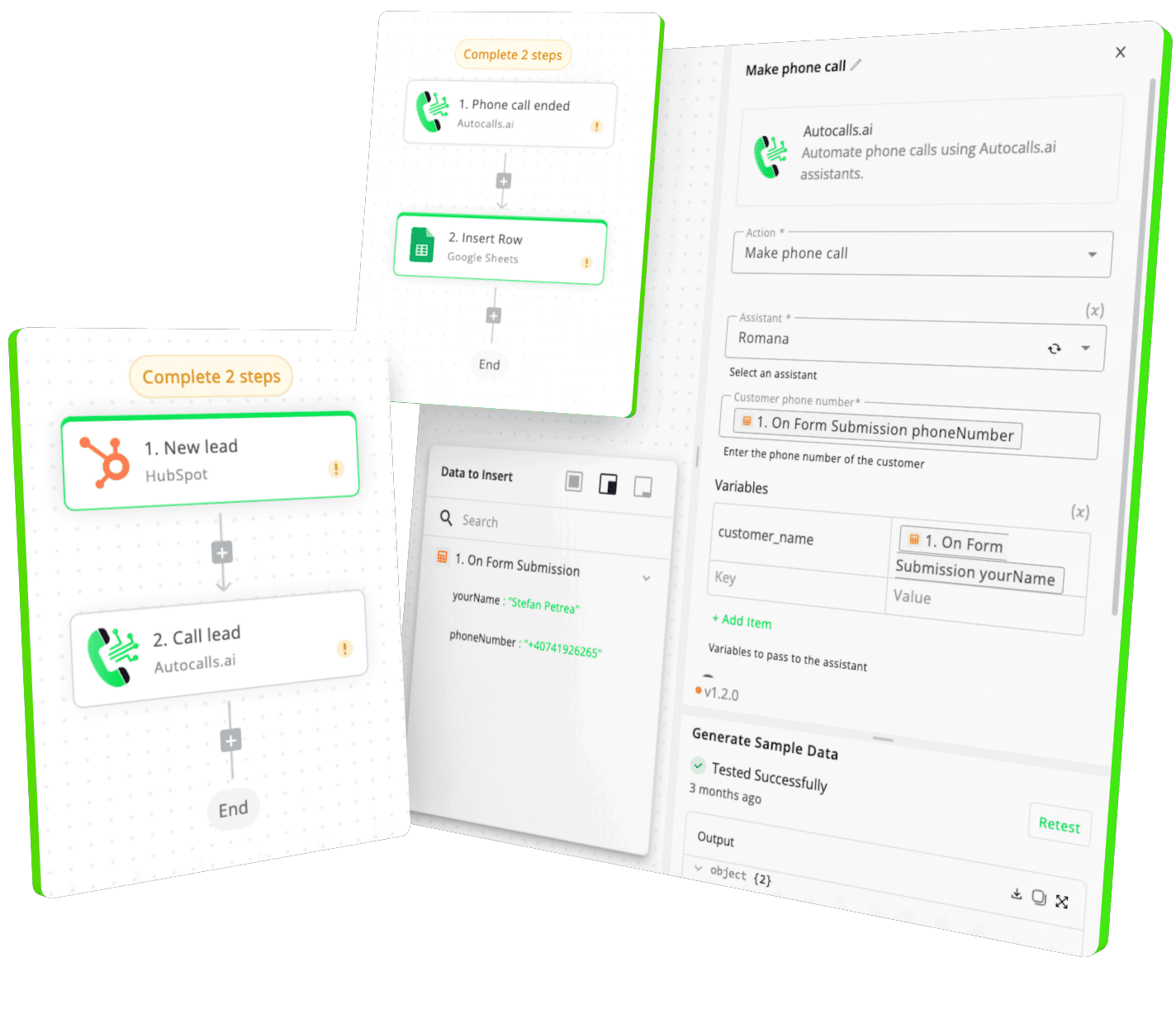
Seamless integration between GoHighLevel and Autocalls.ai
Create no-code AI phone call systems with GoHighLevel integration: never miss a call again and convert more leads
Automate your GoHighLevel processes with intelligent voice agents that handle calls, collect data, and trigger actions automatically. No more missed opportunities or manual follow-ups.
Our drag-and-drop interface makes it simple to connect GoHighLevel with your voice workflows. No coding required, no technical expertise needed.
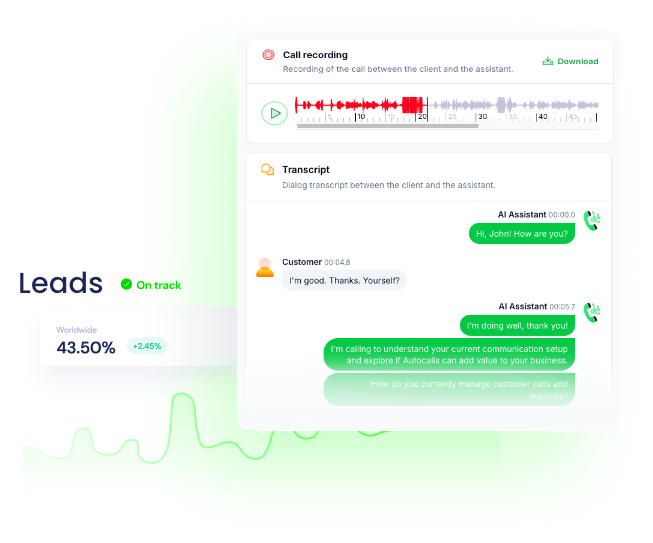
Track performance, analyze conversation patterns, and optimize your GoHighLevel workflows with detailed analytics and reporting features.
Powerful actions you can trigger with GoHighLevel to automate your workflows
Create a new task.
The contact to use.
Update a task.
The contact to use.
Create a new contact.
1. Go to the [Marketplace](https://marketplace.gohighlevel.com/) and sign up for a developer account. 2. Navigate to **My Apps** and click on **Create App**. 3. Provide app name.Then select **Private** as App Type, **Sub-Account** as Distribution Type. Click **Create App** Button. 4. Add following scopes. - campaigns.readonly - contacts.write - contacts.readonly - locations.readonly - locations/tags.readonly - locations/tags.write - opportunities.readonly - opportunities.write - users.readonly - workflows.readonly - forms.readonly 5. Add redirect URLs. 6. Create new Client key with valid name.Copy Client ID and Client Secret.
When using a dynamic value, make sure to use the ISO-2 country code, and not the country name.
Update an existing contact.
The ID of the contact.
1. Go to the [Marketplace](https://marketplace.gohighlevel.com/) and sign up for a developer account. 2. Navigate to **My Apps** and click on **Create App**. 3. Provide app name.Then select **Private** as App Type, **Sub-Account** as Distribution Type. Click **Create App** Button. 4. Add following scopes. - campaigns.readonly - contacts.write - contacts.readonly - locations.readonly - locations/tags.readonly - locations/tags.write - opportunities.readonly - opportunities.write - users.readonly - workflows.readonly - forms.readonly 5. Add redirect URLs. 6. Create new Client key with valid name.Copy Client ID and Client Secret.
When using a dynamic value, make sure to use the ISO-2 country code, and not the country name.
Make a custom API call to a specific endpoint
1. Go to the [Marketplace](https://marketplace.gohighlevel.com/) and sign up for a developer account. 2. Navigate to **My Apps** and click on **Create App**. 3. Provide app name.Then select **Private** as App Type, **Sub-Account** as Distribution Type. Click **Create App** Button. 4. Add following scopes. - campaigns.readonly - contacts.write - contacts.readonly - locations.readonly - locations/tags.readonly - locations/tags.write - opportunities.readonly - opportunities.write - users.readonly - workflows.readonly - forms.readonly 5. Add redirect URLs. 6. Create new Client key with valid name.Copy Client ID and Client Secret.
Authorization headers are injected automatically from your connection.
Search for contacts with a search query.
1. Go to the [Marketplace](https://marketplace.gohighlevel.com/) and sign up for a developer account. 2. Navigate to **My Apps** and click on **Create App**. 3. Provide app name.Then select **Private** as App Type, **Sub-Account** as Distribution Type. Click **Create App** Button. 4. Add following scopes. - campaigns.readonly - contacts.write - contacts.readonly - locations.readonly - locations/tags.readonly - locations/tags.write - opportunities.readonly - opportunities.write - users.readonly - workflows.readonly - forms.readonly 5. Add redirect URLs. 6. Create new Client key with valid name.Copy Client ID and Client Secret.
The value you want to search for.
Create a new opportunity.
1. Go to the [Marketplace](https://marketplace.gohighlevel.com/) and sign up for a developer account. 2. Navigate to **My Apps** and click on **Create App**. 3. Provide app name.Then select **Private** as App Type, **Sub-Account** as Distribution Type. Click **Create App** Button. 4. Add following scopes. - campaigns.readonly - contacts.write - contacts.readonly - locations.readonly - locations/tags.readonly - locations/tags.write - opportunities.readonly - opportunities.write - users.readonly - workflows.readonly - forms.readonly 5. Add redirect URLs. 6. Create new Client key with valid name.Copy Client ID and Client Secret.
The stage of the pipeline to use.
The contact to use.
The ID of the pipeline to use.
Updates an existing opportunity.
1. Go to the [Marketplace](https://marketplace.gohighlevel.com/) and sign up for a developer account. 2. Navigate to **My Apps** and click on **Create App**. 3. Provide app name.Then select **Private** as App Type, **Sub-Account** as Distribution Type. Click **Create App** Button. 4. Add following scopes. - campaigns.readonly - contacts.write - contacts.readonly - locations.readonly - locations/tags.readonly - locations/tags.write - opportunities.readonly - opportunities.write - users.readonly - workflows.readonly - forms.readonly 5. Add redirect URLs. 6. Create new Client key with valid name.Copy Client ID and Client Secret.
The stage of the pipeline to use.
The contact to use.
The ID of the pipeline to use.
Add a new note to a contact.
1. Go to the [Marketplace](https://marketplace.gohighlevel.com/) and sign up for a developer account. 2. Navigate to **My Apps** and click on **Create App**. 3. Provide app name.Then select **Private** as App Type, **Sub-Account** as Distribution Type. Click **Create App** Button. 4. Add following scopes. - campaigns.readonly - contacts.write - contacts.readonly - locations.readonly - locations/tags.readonly - locations/tags.write - opportunities.readonly - opportunities.write - users.readonly - workflows.readonly - forms.readonly 5. Add redirect URLs. 6. Create new Client key with valid name.Copy Client ID and Client Secret.
The contact to use.
Add an existing contact to a campaign.
1. Go to the [Marketplace](https://marketplace.gohighlevel.com/) and sign up for a developer account. 2. Navigate to **My Apps** and click on **Create App**. 3. Provide app name.Then select **Private** as App Type, **Sub-Account** as Distribution Type. Click **Create App** Button. 4. Add following scopes. - campaigns.readonly - contacts.write - contacts.readonly - locations.readonly - locations/tags.readonly - locations/tags.write - opportunities.readonly - opportunities.write - users.readonly - workflows.readonly - forms.readonly 5. Add redirect URLs. 6. Create new Client key with valid name.Copy Client ID and Client Secret.
The contact to use.
Add an existing contact to a workflow.
1. Go to the [Marketplace](https://marketplace.gohighlevel.com/) and sign up for a developer account. 2. Navigate to **My Apps** and click on **Create App**. 3. Provide app name.Then select **Private** as App Type, **Sub-Account** as Distribution Type. Click **Create App** Button. 4. Add following scopes. - campaigns.readonly - contacts.write - contacts.readonly - locations.readonly - locations/tags.readonly - locations/tags.write - opportunities.readonly - opportunities.write - users.readonly - workflows.readonly - forms.readonly 5. Add redirect URLs. 6. Create new Client key with valid name.Copy Client ID and Client Secret.
The contact to use.
Events in GoHighLevel that can automatically start your workflows
Trigger when a new contact is added.
No additional configuration required
Trigger when a contact is created or updated.
1. Go to the [Marketplace](https://marketplace.gohighlevel.com/) and sign up for a developer account. 2. Navigate to **My Apps** and click on **Create App**. 3. Provide app name.Then select **Private** as App Type, **Sub-Account** as Distribution Type. Click **Create App** Button. 4. Add following scopes. - campaigns.readonly - contacts.write - contacts.readonly - locations.readonly - locations/tags.readonly - locations/tags.write - opportunities.readonly - opportunities.write - users.readonly - workflows.readonly - forms.readonly 5. Add redirect URLs. 6. Create new Client key with valid name.Copy Client ID and Client Secret.
Trigger when a new opportunity is added.
1. Go to the [Marketplace](https://marketplace.gohighlevel.com/) and sign up for a developer account. 2. Navigate to **My Apps** and click on **Create App**. 3. Provide app name.Then select **Private** as App Type, **Sub-Account** as Distribution Type. Click **Create App** Button. 4. Add following scopes. - campaigns.readonly - contacts.write - contacts.readonly - locations.readonly - locations/tags.readonly - locations/tags.write - opportunities.readonly - opportunities.write - users.readonly - workflows.readonly - forms.readonly 5. Add redirect URLs. 6. Create new Client key with valid name.Copy Client ID and Client Secret.
The ID of the pipeline to use.
Trigger when a form is submitted.
1. Go to the [Marketplace](https://marketplace.gohighlevel.com/) and sign up for a developer account. 2. Navigate to **My Apps** and click on **Create App**. 3. Provide app name.Then select **Private** as App Type, **Sub-Account** as Distribution Type. Click **Create App** Button. 4. Add following scopes. - campaigns.readonly - contacts.write - contacts.readonly - locations.readonly - locations/tags.readonly - locations/tags.write - opportunities.readonly - opportunities.write - users.readonly - workflows.readonly - forms.readonly 5. Add redirect URLs. 6. Create new Client key with valid name.Copy Client ID and Client Secret.
The form you want to use.
Real-world examples of how businesses use GoHighLevel integration to automate workflows
Automatically call new leads from GoHighLevel within minutes of their signup or inquiry, ensuring no opportunity is missed.
Send automated reminder calls for upcoming appointments scheduled in GoHighLevel, reducing no-shows significantly.
Re-engage inactive customers with personalized outreach calls based on their GoHighLevel activity and behavior patterns.
Automatically follow up with customers after support tickets are resolved in GoHighLevel to ensure satisfaction.
Automatically qualify leads from GoHighLevel before they reach your sales team, improving conversion rates.
Send instant voice notifications when important events occur in GoHighLevel, keeping your team informed in real-time.
Easily manage AI voice agents without the need for programming skills.
Integrate with popular tools such as HubSpot, GoHighLevel, Zoho, Cal.com & +250 more and build automations using drag and drop.
+250 tools ready to integrate with your AI agents flow in our no-code platform, similar to Zapier or Make.
Have a question that is not answered? You can contact us at
Have a question? Contact usSetting up GoHighLevel integration takes less than 5 minutes. Simply connect your GoHighLevel account, configure your voice agent preferences, and start automating your phone calls immediately.
No technical expertise required - our platform is designed to be user-friendly and intuitive.
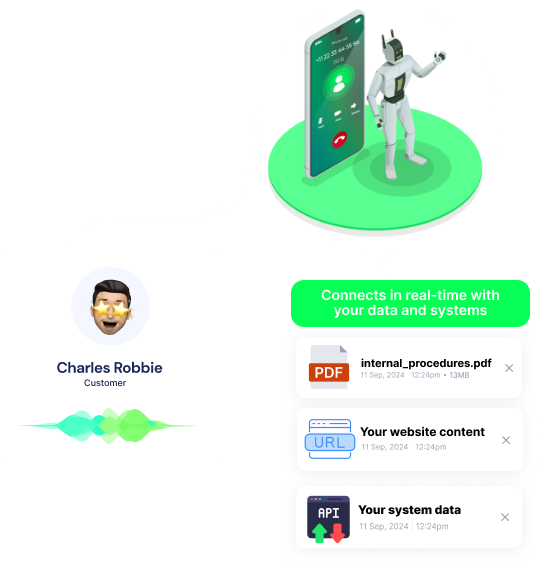
Our integration syncs all relevant GoHighLevel data including contacts, leads, custom fields, tags, and activity history. Call outcomes and recordings are automatically saved back to GoHighLevel for complete visibility and reporting.
There are no limitations on the number of calls you can make through the GoHighLevel integration. Your plan determines call volume, and you can upgrade anytime. All calls comply with local regulations and include automatic opt-out handling.
Absolutely! You can fully customize your voice agent's personality, script, voice, and responses based on GoHighLevel data. Create different agents for different GoHighLevel workflows, customer segments, or business objectives.
Join thousands of businesses already automating their phone calls with our
GoHighLevel integration.
You can get your assistant ready in few minutes.