Connect Date Helper with Autocalls.ai AI voice agents
Use Date Helper with AI voice agents to time every call perfectly. Automate reminders, follow-ups, and scheduling with accurate date formatting and time calculations.
Connect Date Helper to your AI voice workflows so every outbound and inbound interaction uses the right date, timezone logic, and follow-up timing.
It helps teams automate reminders, reschedules, and appointment booking while improving response speed across AI call center automation.
Use actions like Date Difference, Next Day of Week, and Add/Subtract Time to decide exactly when your AI should call again.
This makes call automation more precise for renewals, reminders, and missed-callback sequences while reducing manual scheduling work for AI answering service and AI virtual receptionist teams.
Extract year, month, day, hour, or weekday values from customer records to route calls based on urgency, appointment windows, or support SLAs.
Date Helper keeps your voice agent flows accurate and scalable for reminder campaigns, reactivation calls, and integrations that connect with WhatsApp AI chatbot journeys.
Get a hands-on experience by trying a free demo call. Fill in your details, and our AI representative will call you instantly.
Try now a free AI call✓ No credit card required ✓ No commitment
Powerful actions you can trigger with Date Helper to automate your workflows
Converts a date from one format to another
Enter the input date
Here's what each part of the format (e.g., YYYY) represents: YYYY : Year (4 digits) - Example: 2023 YY : Year (2 digits) - Example: 23 MMMM : Month (full name) - Example: September MMM : Month (short name) - Example: Sep MM : Month (2 digits) - Example: 09 DDDD : Day (full name) - Example: Sunday DDD : Day (short name) - Example: Sun DD : Day (2 digits) - Example: 17 HH : Hour (2 digits) - Example: 11 mm : Minute (2 digits) - Example: 23 ss : Second (2 digits) - Example: 58 X : Time in Unix format - Example: 1694949838
Get the difference between two dates
Enter the ending date
Enter the starting date
Here's what each part of the format (e.g., YYYY) represents: YYYY : Year (4 digits) - Example: 2023 YY : Year (2 digits) - Example: 23 MMMM : Month (full name) - Example: September MMM : Month (short name) - Example: Sep MM : Month (2 digits) - Example: 09 DDDD : Day (full name) - Example: Sunday DDD : Day (short name) - Example: Sun DD : Day (2 digits) - Example: 17 HH : Hour (2 digits) - Example: 11 mm : Minute (2 digits) - Example: 23 ss : Second (2 digits) - Example: 58 X : Time in Unix format - Example: 1694949838
Select the unit of difference between the two dates
Here's what each part of the format (e.g., YYYY) represents: YYYY : Year (4 digits) - Example: 2023 YY : Year (2 digits) - Example: 23 MMMM : Month (full name) - Example: September MMM : Month (short name) - Example: Sep MM : Month (2 digits) - Example: 09 DDDD : Day (full name) - Example: Sunday DDD : Day (short name) - Example: Sun DD : Day (2 digits) - Example: 17 HH : Hour (2 digits) - Example: 11 mm : Minute (2 digits) - Example: 23 ss : Second (2 digits) - Example: 58 X : Time in Unix format - Example: 1694949838
Get the current date
Here's what each part of the format (e.g., YYYY) represents: YYYY : Year (4 digits) - Example: 2023 YY : Year (2 digits) - Example: 23 MMMM : Month (full name) - Example: September MMM : Month (short name) - Example: Sep MM : Month (2 digits) - Example: 09 DDDD : Day (full name) - Example: Sunday DDD : Day (short name) - Example: Sun DD : Day (2 digits) - Example: 17 HH : Hour (2 digits) - Example: 11 mm : Minute (2 digits) - Example: 23 ss : Second (2 digits) - Example: 58 X : Time in Unix format - Example: 1694949838
Get the date and time of the next day of the week
The time that you would like to get the date and time of. This must be in 24h format.
The weekday that you would like to get the date and time of.
Here's what each part of the format (e.g., YYYY) represents: YYYY : Year (4 digits) - Example: 2023 YY : Year (2 digits) - Example: 23 MMMM : Month (full name) - Example: September MMM : Month (short name) - Example: Sep MM : Month (2 digits) - Example: 09 DDDD : Day (full name) - Example: Sunday DDD : Day (short name) - Example: Sun DD : Day (2 digits) - Example: 17 HH : Hour (2 digits) - Example: 11 mm : Minute (2 digits) - Example: 23 ss : Second (2 digits) - Example: 58 X : Time in Unix format - Example: 1694949838
If checked, the current time will be used instead of the time specified above.
Get the date and time of the next day of the year
The day of the month that you would like to get the date and time of.
The time that you would like to get the date and time of. This must be in 24h format.
The month that you would like to get the date and time of.
Here's what each part of the format (e.g., YYYY) represents: YYYY : Year (4 digits) - Example: 2023 YY : Year (2 digits) - Example: 23 MMMM : Month (full name) - Example: September MMM : Month (short name) - Example: Sep MM : Month (2 digits) - Example: 09 DDDD : Day (full name) - Example: Sunday DDD : Day (short name) - Example: Sun DD : Day (2 digits) - Example: 17 HH : Hour (2 digits) - Example: 11 mm : Minute (2 digits) - Example: 23 ss : Second (2 digits) - Example: 58 X : Time in Unix format - Example: 1694949838
If checked, the current time will be used instead of the time specified above.
Add or subtract time from a date
Enter the input date
Provide an expression to add or subtract using the following units (year , month , day , hour , minute or second). Examples: + 2 second + 1 hour + 1 year - 3 day - 2 month + 5 minute
Here's what each part of the format (e.g., YYYY) represents: YYYY : Year (4 digits) - Example: 2023 YY : Year (2 digits) - Example: 23 MMMM : Month (full name) - Example: September MMM : Month (short name) - Example: Sep MM : Month (2 digits) - Example: 09 DDDD : Day (full name) - Example: Sunday DDD : Day (short name) - Example: Sun DD : Day (2 digits) - Example: 17 HH : Hour (2 digits) - Example: 11 mm : Minute (2 digits) - Example: 23 ss : Second (2 digits) - Example: 58 X : Time in Unix format - Example: 1694949838
Extract date units ( year , month , day , hour , minute , second , day of week , month name ) from a date
Enter the input date
Here's what each part of the format (e.g., YYYY) represents: YYYY : Year (4 digits) - Example: 2023 YY : Year (2 digits) - Example: 23 MMMM : Month (full name) - Example: September MMM : Month (short name) - Example: Sep MM : Month (2 digits) - Example: 09 DDDD : Day (full name) - Example: Sunday DDD : Day (short name) - Example: Sun DD : Day (2 digits) - Example: 17 HH : Hour (2 digits) - Example: 11 mm : Minute (2 digits) - Example: 23 ss : Second (2 digits) - Example: 58 X : Time in Unix format - Example: 1694949838
Select the unit to extract from the date
Real-world examples of how businesses use Date Helper integration to automate workflows
The AI agent gets the current date, formats the customer appointment date, and calculates how far away it is. It then places reminder calls at the right time without manual scheduling.
The workflow finds the next chosen weekday after a missed call or lead form submission. Your AI voice agent schedules a callback window that fits the team calendar.
Date Difference checks how many days remain before a renewal or policy end date. The system triggers outreach at the ideal moment to improve conversion.
Date Helper formats and adjusts date values before the AI agent dials. This helps your campaigns reach people during appropriate local calling hours.
The workflow extracts month and day values from stored customer dates. Your AI dialer then runs personalized calls on the exact day that matters.
After a service or consultation, the system adds a set number of days to the visit date. The AI agent calls back on schedule to check satisfaction or book the next step.
Easily manage AI voice agents without the need for programming skills.
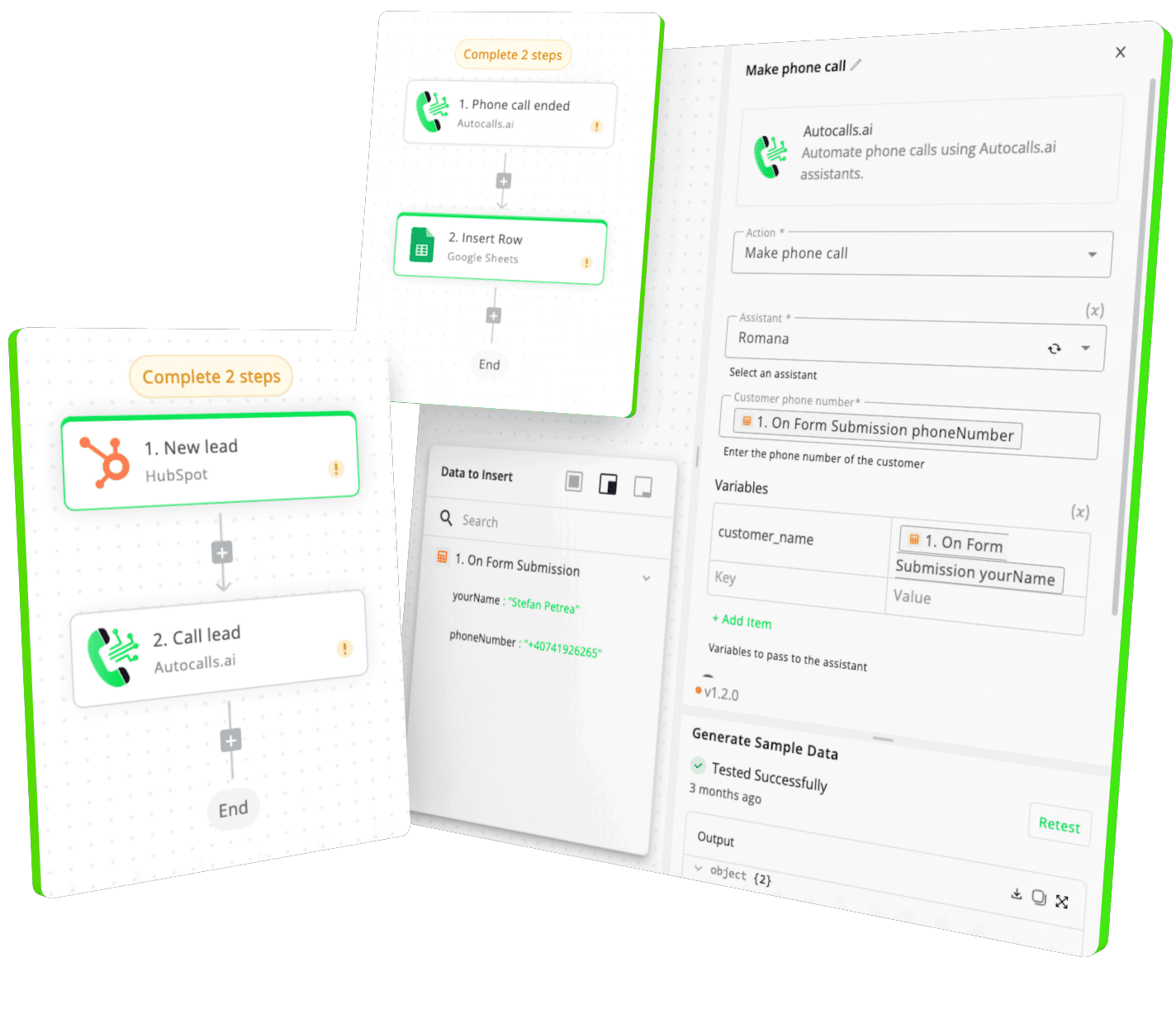
Integrate with popular tools such as HubSpot, GoHighLevel, Zoho, Cal.com & +250 more and build automations using drag and drop.
+250 tools ready to integrate with your AI agents flow in our no-code platform, similar to Zapier or Make.
Have a question that is not answered? You can contact us at
Have a question? Contact usDate Helper phone integration connects date and time logic to your AI calling workflows. It lets your voice agent format dates, calculate follow-up windows, and trigger better-timed customer conversations.
A Date Helper auto dialer uses actions like Date Difference, Next Day of Week, and Add/Subtract Time to place calls at more effective times. That means fewer missed follow-ups and better timing for reminders, renewals, and callbacks.
Yes. Autocalls is built for no-code automation, so you can connect Date Helper actions to AI call flows without technical setup. You can launch date-based calling logic quickly through the workflow builder.
Date Helper phone automation makes it easy to convert, compare, and adjust dates inside your call workflows. This is useful for appointment reminders, service follow-ups, and any campaign that depends on exact timing.
Date Helper call automation removes repetitive date calculations from your team and gives your AI agent consistent timing rules. It helps reduce human error while keeping outreach organized across high-volume call campaigns.
A Date Helper voice agent can check the current date, calculate intervals between dates, extract time units, and schedule the next contact point. This helps the agent respond with accurate timing and smarter next-step planning.
Autocalls is designed so you can build advanced automations without juggling separate provider setup. If your workflow needs Date Helper API-style date logic, you can use the available actions inside the platform to support AI calls and phone automation.
Join thousands of businesses already automating their phone calls with our
Date Helper integration.
You can get your assistant ready in few minutes.
The full path forward. Strategy, scripts, pricing, and the operating cadence agencies use to scale a white-label voice AI business. Free PDF, delivered to your inbox.