NEW Your $0 → $50K MRR voice AI playbook . The full path to a profitable AI voice agency. Free. Get it free
ClickUp
Autocalls.ai

Connect ClickUp with Autocalls.ai AI voice agents

ClickUp AI Voice Call Automation

Turn ClickUp tasks into live AI calls, updates, and follow-ups. Keep your team faster, more organized, and easier to reach.

Productivity
17 Actions
7 Triggers
Autocalls Autocalls
Turn ClickUp tasks into AI phone integration
Task Calling

Turn ClickUp tasks into AI phone integration

When a new task is created or updated in ClickUp, your AI voice agent can instantly call leads, customers, or assigned contacts to qualify, confirm, or collect details.
That means faster outreach, better appointment booking, and more reliable AI call center automation without manual dialing.

  • 60% faster lead response
  • 24/7 call automation coverage
Sync call outcomes with ClickUp auto dialer workflows
Auto Updates

Sync call outcomes with ClickUp auto dialer workflows

After each AI call, you can create comments, update task fields, change statuses, or set custom field values in ClickUp so your team always sees the latest outcome.
This gives sales and support teams cleaner visibility while linking outreach to integrations and front-line workflows like an AI answering service.

  • 90% less manual admin
  • 95% cleaner task tracking
Scale ClickUp call automation across every workflow
Team Speed

Scale ClickUp call automation across every workflow

Use ClickUp triggers like Task Created, Task Updated, or Task Comment Posted to launch outbound calls, reminders, escalations, and follow-ups at the right moment.
It is a practical way to run high-volume phone integration with tools like an AI virtual receptionist or WhatsApp AI chatbot from one system.

  • 3x more outreach capacity
  • 50% faster team handoff

Available Actions

Powerful actions you can trigger with ClickUp to automate your workflows

Get List

Gets a list in a ClickUp

Configuration Fields:
List ID Required SHORT_TEXT

The id of the list to get

Get Space

Gets a space in a ClickUp

Configuration Fields:
Space ID Required SHORT_TEXT

The id of the space to get

Get Spaces

Gets spaces in a ClickUp workspace

Configuration Fields:
Workspace Required DROPDOWN

The ID of the ClickUp workspace to create the task in

Create Task

Create a new task in a ClickUp workspace and list

Configuration Fields:
Connection Required OAUTH2

Name Required SHORT_TEXT

The name of task

List Required DROPDOWN

The ID of the ClickUp space to create the task in

Space Required DROPDOWN

The ID of the ClickUp space to create the task in

Status Id DROPDOWN

The ID of Clickup Issue Status

Assignee Id MULTI_SELECT_DROPDOWN

ID of assignee for Clickup Task

Description LONG_TEXT

The description of task

Priority Id STATIC_DROPDOWN

The ID of Clickup Issue Priority

Workspace Required DROPDOWN

The ID of the ClickUp workspace to create the task in

Markdown Description LONG_TEXT

The description of task with markdown formatting

Delete Task

Delete a task in a workspace and list

Configuration Fields:
List Required DROPDOWN

The ID of the ClickUp space to create the task in

Task Id Required DROPDOWN

The ID of the ClickUp task

Space Required DROPDOWN

The ID of the ClickUp space to create the task in

Workspace Required DROPDOWN

The ID of the ClickUp workspace to create the task in

Update Task

Update task in a ClickUp workspace and list

Configuration Fields:
Task Name SHORT_TEXT

The name of the task to update

List Required DROPDOWN

The ID of the ClickUp space to create the task in

Task Id Required DROPDOWN

The ID of the ClickUp task

Space Required DROPDOWN

The ID of the ClickUp space to create the task in

Status Id DROPDOWN

The ID of Clickup Issue Status

Task Description LONG_TEXT

The description of the task to update

Priority Id STATIC_DROPDOWN

The ID of Clickup Issue Priority

Add Assignees MULTI_SELECT_DROPDOWN

assignee(s) you want to add for the task

Remove Assignees MULTI_SELECT_DROPDOWN

assignee(s) you want to remove from the task

Workspace Required DROPDOWN

The ID of the ClickUp workspace to create the task in

Get Task

Gets a task in a ClickUp list

Configuration Fields:
Task ID Required SHORT_TEXT

The id of the tas to get

Create Subtask

Creates a subtask in ClickUp

Configuration Fields:
Task Name Required SHORT_TEXT

The name of the task to create

List Required DROPDOWN

The ID of the ClickUp space to create the task in

Task Id Required DROPDOWN

The ID of the ClickUp task

Space Required DROPDOWN

The ID of the ClickUp space to create the task in

Task Description Required LONG_TEXT

The description of the task to create

Workspace Required DROPDOWN

The ID of the ClickUp workspace to create the task in

Custom API Call

Make a custom API call to a specific endpoint

Configuration Fields:
Required DYNAMIC
Connection Required OAUTH2

Body JSON
Method Required STATIC_DROPDOWN
Headers Required OBJECT

Authorization headers are injected automatically from your connection.

Timeout (in seconds) NUMBER
No Error on Failure CHECKBOX
Query Parameters Required OBJECT

Get Task Comments

Gets comments from a task in ClickUp

Configuration Fields:
Task ID Required SHORT_TEXT

The ID of the task to get

Create Task Comment

Creates a comment on a task in ClickUp

Configuration Fields:
Comment Required LONG_TEXT

Comment to make on the task

List Required DROPDOWN

The ID of the ClickUp space to create the task in

Task Id Required DROPDOWN

The ID of the ClickUp task

Space Required DROPDOWN

The ID of the ClickUp space to create the task in

Assignee Id DROPDOWN

ID of assignee for Task Comment

Workspace Required DROPDOWN

The ID of the ClickUp workspace to create the task in

List Team Tasks

Retrieves the tasks that meet specific criteria from a Workspace.

Configuration Fields:
Page NUMBER

Page to fetch (starts at 0).

Tags MULTI_SELECT_DROPDOWN

The tags to filter for

List MULTI_SELECT_DROPDOWN

The ID of the ClickUp space to create the task in

Reverse CHECKBOX

Tasks are displayed in reverse order.

Order By STATIC_DROPDOWN

Order by a particular field. By default, tasks are ordered by created.

Space MULTI_SELECT_DROPDOWN

The ID of the ClickUp space to create the task in

Assignee Id MULTI_SELECT_DROPDOWN

ID of assignee for Clickup Task

Folder Id MULTI_SELECT_DROPDOWN

The ID of the ClickUp folder

Workspace Required DROPDOWN

The ID of the ClickUp workspace to create the task in

Include Closed CHECKBOX

Include or exclude closed tasks. By default, they are excluded.

Create Folderless List

Create a new folderless list in a ClickUp workspace and space

Configuration Fields:
List Name Required SHORT_TEXT

The name of the list to create

Space Required DROPDOWN

The ID of the ClickUp space to create the task in

Workspace Required DROPDOWN

The ID of the ClickUp workspace to create the task in

Set Custom Field Value

Add data to a Custom field on a task.

Configuration Fields:
Value Required LONG_TEXT

The new value to be set

List DROPDOWN

The ID of the ClickUp space to create the task in

Task Id Required DROPDOWN

The ID of the ClickUp task

Field Required DROPDOWN

The ID of the ClickUp custom field

Space Required DROPDOWN

The ID of the ClickUp space to create the task in

Workspace Required DROPDOWN

The ID of the ClickUp workspace to create the task in

Create Task From Template

Create a new task from Template

Configuration Fields:
Task Name Required SHORT_TEXT

The name of the task to create

List Required DROPDOWN

The ID of the ClickUp space to create the task in

Space Required DROPDOWN

The ID of the ClickUp space to create the task in

Template Id Required DROPDOWN

The ID of Clickup Task Template

Workspace Required DROPDOWN

The ID of the ClickUp workspace to create the task in

List Time Entries

Retrieves time entries filtered by start and end date.

Configuration Fields:
List DROPDOWN

The ID of the ClickUp space to create the task in

Task DROPDOWN

The ID of the ClickUp task

Assignee Id MULTI_SELECT_DROPDOWN

ID of assignee for Clickup Task

End date DATE_TIME
Space DROPDOWN

The ID of the ClickUp space to create the task in

Folder Id DROPDOWN

The ID of the ClickUp folder

Start date DATE_TIME

Workspace Required DROPDOWN

The ID of the ClickUp workspace to create the task in

Include task tags CHECKBOX

Include task tags in the response for time entries associated with tasks.

Include location names CHECKBOX

Include the names of the List, Folder, and Space along with the list_id, folder_id, and space_id.

Get Accessible Custom Fields

View the Custom Fields available on tasks in a specific List.

Configuration Fields:
List Required DROPDOWN

The ID of the ClickUp space to create the task in

Space Required DROPDOWN

The ID of the ClickUp space to create the task in

Workspace Required DROPDOWN

The ID of the ClickUp workspace to create the task in

Autocalls Autocalls

Available Triggers

Events in ClickUp that can automatically start your workflows

Task Tag Updated

Triggered when a tag is added or removed or renamed on a task.

Configuration Fields:
Connection Required OAUTH2

List DROPDOWN

The ID of the ClickUp space to create the task in

Task Id DROPDOWN

The ID of the ClickUp task

Space Required DROPDOWN

The ID of the ClickUp space to create the task in

Workspace Required DROPDOWN

The ID of the ClickUp workspace to create the task in

List Created

Triggered when a new list is created.

Configuration Fields:
Workspace Required DROPDOWN

The ID of the ClickUp workspace to create the task in

Task Created

Triggered when a new task is created.

Configuration Fields:
Workspace Required DROPDOWN

The ID of the ClickUp workspace to create the task in

Task Deleted

Triggered when a task is deleted.

Configuration Fields:
Workspace Required DROPDOWN

The ID of the ClickUp workspace to create the task in

Task Updated

Triggered when a task is updated.

Configuration Fields:
Workspace Required DROPDOWN

The ID of the ClickUp workspace to create the task in

Task Comment Posted

Triggered when a task comment is posted.

Configuration Fields:
Workspace Required DROPDOWN

The ID of the ClickUp workspace to create the task in

Task Comment Updated

Triggered when a task comment is updated.

Configuration Fields:
Workspace Required DROPDOWN

The ID of the ClickUp workspace to create the task in

Autocalls Autocalls

Examples of automation flows

Real-world examples of how businesses use ClickUp integration to automate workflows

Call new tasks instantly

When a Task Created trigger fires in ClickUp, an AI agent calls the contact right away. Your team reaches new leads before they cool off.

Update tasks after every call

After an AI conversation, the workflow can Update Task details and Set Custom Field Value in ClickUp. Reps see outcomes, priority, and next steps without extra admin work.

Post call summaries as comments

Each completed call can Create Task Comment with a short summary, objections, and follow-up notes. Everyone stays aligned inside the same ClickUp task.

Launch follow-ups from task changes

A Task Updated trigger can start a reminder call when due dates, owners, or statuses change. This keeps deals and service cases moving without manual chasing.

Create subtasks from call outcomes

If a caller requests documents, pricing, or a manager callback, the workflow can Create Subtask automatically. Your team gets a clear next action tied to the original task.

Use templates for repeat call workflows

Create Task From Template can spin up standardized follow-up tasks after inbound or outbound AI calls. This makes high-volume outreach more consistent and easier to manage.

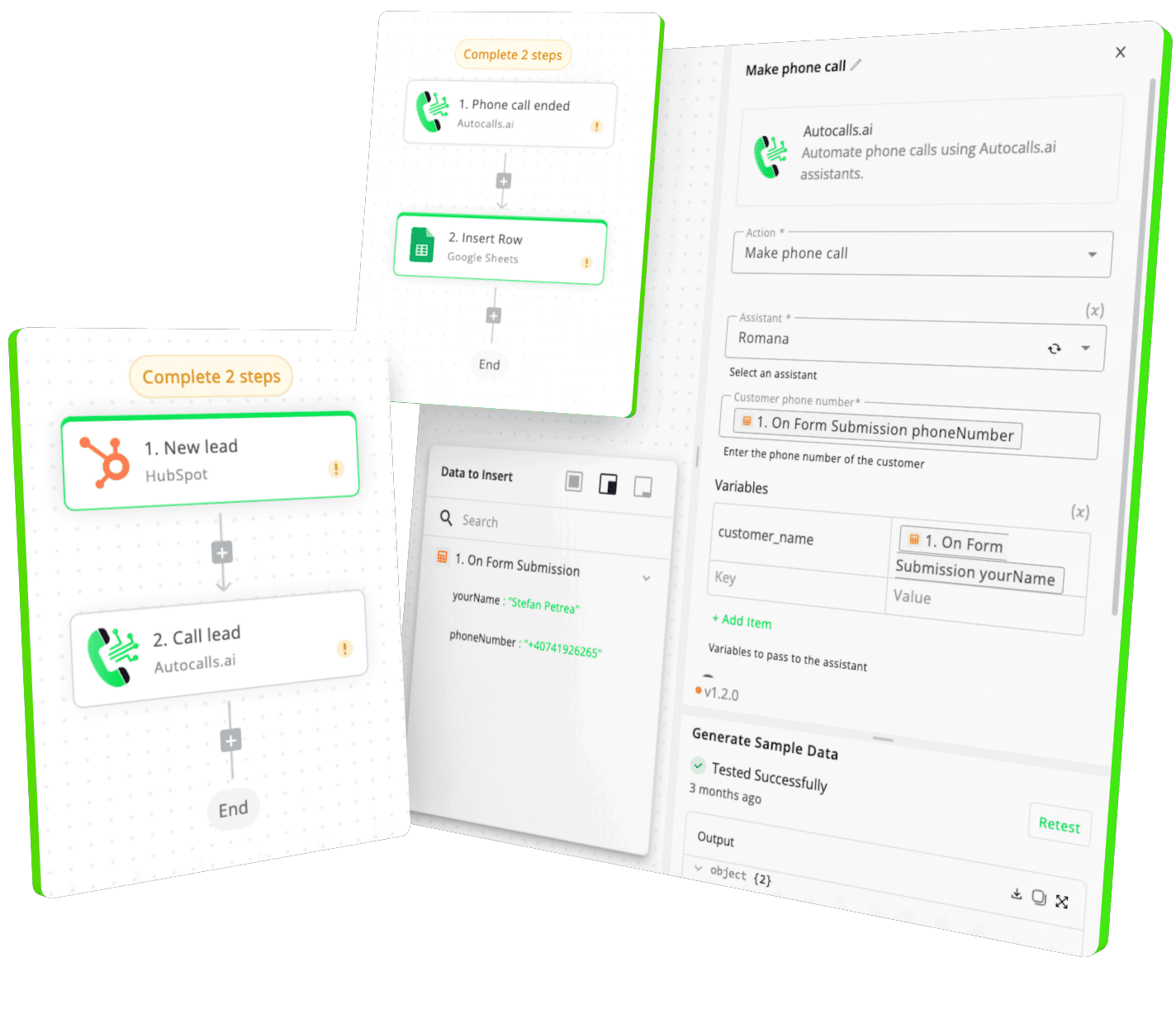
Integrate with popular tools using our no-code platform

Easily manage AI voice agents without the need for programming skills.

Integrate with popular tools such as HubSpot, GoHighLevel, Zoho, Cal.com & +250 more and build automations using drag and drop.

Autocalls

+250 tools ready to integrate with your AI agents flow in our no-code platform, similar to Zapier or Make.

Autocalls
Similar integrations with ClickUp

Frequently Asked Questions 👍

Have a question that is not answered? You can contact us at

Have a question? Contact us

ClickUp phone integration connects task activity in ClickUp with AI-powered outbound and inbound calling workflows. When a task is created, updated, or commented on, your AI voice agent can call, log outcomes, and push updates back into ClickUp automatically.

Yes. A ClickUp auto dialer workflow can place AI calls when tasks are created, due dates change, or statuses are updated, helping your team follow up faster and more consistently. It is useful for lead qualification, reminders, customer check-ins, and reactivation campaigns.

A ClickUp AI dialer uses task data and workflow triggers to start calls automatically, instead of waiting for a rep to dial one by one. This reduces delays, increases contact rates, and keeps task records updated after every conversation.

Yes, ClickUp phone automation can update task details, create comments, set custom field values, and trigger next steps after each call. That helps teams track call results in one place and cuts down on repetitive admin work.

ClickUp call automation works well for support, operations, and service teams that need quick outreach tied to tasks. You can trigger reminder calls, escalation calls, and status updates while keeping every interaction connected to the right task.

A ClickUp voice agent can call leads or customers, gather answers, confirm appointments, leave updates, and send the result back into ClickUp. It acts like an always-on phone rep that helps your team respond faster without increasing headcount.

image image image

Ready to integrate ClickUp with AI voice calling agents?

Join thousands of businesses already automating their phone calls with our ClickUp integration.
You can get your assistant ready in few minutes.

Autocalls