NEW Your $0 → $50K MRR voice AI playbook . The full path to a profitable AI voice agency. Free. Get it free
WhatsApp Business
Autocalls.ai

Connect WhatsApp Business with Autocalls.ai AI voice agents

WhatsApp Business AI Call Automation

Connect WhatsApp chats with AI voice agents to reply faster, send updates, and move leads from message to call without manual work.

General
3 Actions
Autocalls Autocalls
WhatsApp Business phone integration for faster lead response
Smart Sync

WhatsApp Business phone integration for faster lead response

Use WhatsApp Business to send text, media, and template messages right after an AI call so every prospect gets the right follow-up at the right time.
Pair this with appointment booking and integrations to confirm meetings, share details, and keep your pipeline moving.

  • 60% faster lead follow-up
  • 3x more booked conversations
WhatsApp Business auto dialer with message-based follow-up
Auto Dialer

WhatsApp Business auto dialer with message-based follow-up

After an outbound AI call, automatically send a WhatsApp text, media asset, or approved template message to keep the conversation active and reduce drop-off.
This helps teams combine AI cold calling with WhatsApp AI chatbot workflows for better contact rates.

  • 40% higher reply rates
  • 50% fewer missed follow-ups
WhatsApp Business call automation that keeps customers informed
Call Automation

WhatsApp Business call automation that keeps customers informed

Turn every AI voice interaction into a clear WhatsApp follow-up by sending service updates, confirmations, documents, or reminders in seconds.
It works well with an AI answering service and an AI virtual receptionist to give customers one consistent experience.

  • 70% faster customer updates
  • 24/7 response coverage

Available Actions

Powerful actions you can trigger with WhatsApp Business to automate your workflows

Send Media

Send a media message through WhatsApp

Configuration Fields:
To Required SHORT_TEXT

The recipient of the message

Connection Required CUSTOM_AUTH

To Obtain a Phone Number ID and a Permanent System User Access Token, follow these steps: 1. Go to https://developers.facebook.com/ 2. Make a new app, Select Other for usecase. 3. Choose Business as the type of app. 4. Add new Product -> WhatsApp. 5. Navigate to WhatsApp Settings > API Setup. 6. Copy the Business Account ID. 7. Login to your [Meta Business Manager](https://business.facebook.com/). 8. Click on Settings. 9. Create a new System User with access over the app and copy the access token.

Type Required DROPDOWN

The type of media to send

Media URL Required SHORT_TEXT

The URL of the media to send

Caption LONG_TEXT

A caption for the media

Filename LONG_TEXT

Filename of the document to send

Phone Number ID Required DROPDOWN

Phone number ID that will be used to send the message.

Send Message

Send a text message through WhatsApp

Configuration Fields:
To Required SHORT_TEXT

The recipient of the message

Connection Required CUSTOM_AUTH

To Obtain a Phone Number ID and a Permanent System User Access Token, follow these steps: 1. Go to https://developers.facebook.com/ 2. Make a new app, Select Other for usecase. 3. Choose Business as the type of app. 4. Add new Product -> WhatsApp. 5. Navigate to WhatsApp Settings > API Setup. 6. Copy the Business Account ID. 7. Login to your [Meta Business Manager](https://business.facebook.com/). 8. Click on Settings. 9. Create a new System User with access over the app and copy the access token.

Message Required LONG_TEXT

The message to send

Phone Number ID Required DROPDOWN

Phone number ID that will be used to send the message.

Send Template Message

Sends a template message.

Configuration Fields:
To Required SHORT_TEXT

Recipient phone number.

Connection Required CUSTOM_AUTH

To Obtain a Phone Number ID and a Permanent System User Access Token, follow these steps: 1. Go to https://developers.facebook.com/ 2. Make a new app, Select Other for usecase. 3. Choose Business as the type of app. 4. Add new Product -> WhatsApp. 5. Navigate to WhatsApp Settings > API Setup. 6. Copy the Business Account ID. 7. Login to your [Meta Business Manager](https://business.facebook.com/). 8. Click on Settings. 9. Create a new System User with access over the app and copy the access token.

Phone Number ID Required DROPDOWN

Phone number ID that will be used to send the message.

Message Template ID Required DROPDOWN
Template Fields Required DYNAMIC
Autocalls Autocalls

Examples of automation flows

Real-world examples of how businesses use WhatsApp Business integration to automate workflows

Missed Call Recovery via WhatsApp

When an AI call goes unanswered, send a WhatsApp message right away with a quick callback prompt. This helps recover more leads while the intent is still high.

Post-Call Appointment Confirmation

After the AI voice agent books a meeting, send a WhatsApp template message with the confirmed time and details. This cuts no-shows and keeps the customer informed.

Sales Follow-Up with Media

Once an outbound call ends, send a WhatsApp media message with a brochure, quote, or product sheet. Prospects get useful information instantly without waiting for a rep.

Payment Reminder Message Automation

Following a collection or billing call, send a WhatsApp template reminder with the next action. This improves response rates and reduces manual chasing.

Support Resolution Recap

After a support call, send a WhatsApp text summary with the outcome and next steps. Customers leave the conversation with clear details they can review later.

Lead Nurture After First Contact

When a prospect speaks with your AI agent, send a WhatsApp message that keeps the conversation warm. This makes it easier to move leads toward a second call or booking.

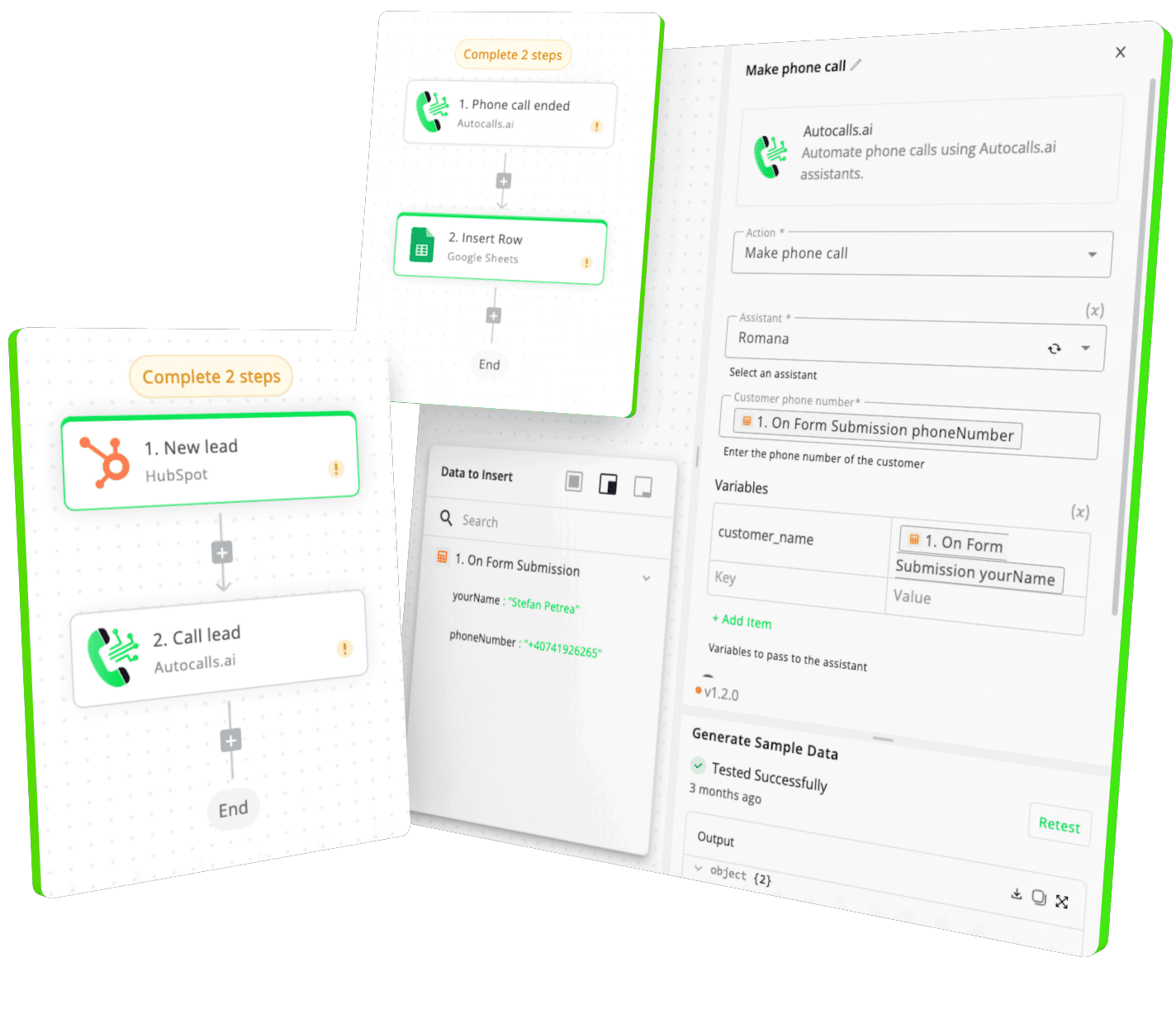
Integrate with popular tools using our no-code platform

Easily manage AI voice agents without the need for programming skills.

Integrate with popular tools such as HubSpot, GoHighLevel, Zoho, Cal.com & +250 more and build automations using drag and drop.

Autocalls

+250 tools ready to integrate with your AI agents flow in our no-code platform, similar to Zapier or Make.

Autocalls
Similar integrations with WhatsApp Business

Frequently Asked Questions 👍

Have a question that is not answered? You can contact us at

Have a question? Contact us

A WhatsApp Business phone integration connects your messaging account with your AI calling workflows so you can send follow-ups after calls automatically. It helps your team handle lead response, reminders, and customer updates without switching between tools.

WhatsApp Business itself is not a dialer, but it works well alongside an AI calling setup that acts like a WhatsApp Business auto dialer workflow. After calls, you can automatically send text, media, or template messages to keep prospects engaged.

A WhatsApp Business AI dialer strategy combines automated phone conversations with fast message follow-up. This means leads hear from you on calls and get instant WhatsApp updates, which can lift reply rates and reduce lost opportunities.

With WhatsApp Business phone automation, you can send appointment confirmations, support recaps, payment reminders, product assets, and post-call updates automatically. It saves time for sales and support teams while giving customers faster answers.

WhatsApp Business call automation keeps conversations going after the phone call ends. Your AI agent can handle the call, then your workflow can send a WhatsApp message with the right context, next step, or document in seconds.

Yes, a WhatsApp Business voice agent setup can support AI phone calls by pairing voice interactions with WhatsApp messaging. This gives customers a better experience across channels and helps businesses stay responsive around the clock.

image image image

Ready to integrate WhatsApp Business with AI voice calling agents?

Join thousands of businesses already automating their phone calls with our WhatsApp Business integration.
You can get your assistant ready in few minutes.

Autocalls