Connect Reachinbox with Autocalls.ai AI voice agents
Turn email activity into instant AI calls and follow-ups. Connect Reachinbox with voice agents to qualify leads, book meetings, and move deals faster.
Trigger AI calls the moment a reply arrives, a lead is marked interested, or a campaign finishes. This Reachinbox phone integration helps your team react faster, qualify demand, and push more contacts into appointment booking flows.
Use campaign signals to launch targeted outreach, route hot leads, and keep every follow-up consistent with your sales process.
When Reachinbox detects opens, replies, or interested leads, your AI agent can start call automation while interest is still high. That means fewer manual handoffs and more conversations handled through AI cold calling and outbound follow-up sequences.
Use analytics, campaign status, and lead updates to decide who gets called first and which message the agent should deliver.
Start, pause, and schedule campaigns in Reachinbox while your AI voice agent handles inbound and outbound conversations based on live email outcomes. This gives teams one workflow for email, voice, and AI call center automation without extra manual work.
From warmup management to blocklist updates and analytics-driven follow-up, you can keep outreach efficient and protect sender reputation at the same time.
Get a hands-on experience by trying a free demo call. Fill in your details, and our AI representative will call you instantly.
Try now a free AI call✓ No credit card required ✓ No commitment
Powerful actions you can trigger with Reachinbox to automate your workflows
Add an email to a specific account.
Enter the email address to add to the campaign.
Choose a campaign from the list or enter the campaign ID manually.
Add leads to campaigns dynamically by selecting a campaign, entering lead details, and including custom variables.
Enter the email address for the lead
Enter the last name for the lead
Enter the first name for the lead
Choose a campaign from the list.
Add custom variables as key-value pairs for the lead.
Get a summary of campaign analytics within a date range.
Enter the end date (YYYY-MM-DD). E.g. 2023-12-20
Enter the start date (YYYY-MM-DD). E.g. 2023-10-11
Updates a Lead.
Enter the new email address for the lead.
Choose a lead from the selected campaign.
Enter the new last name for the lead.
Enter the new first name for the lead.
Choose a campaign from the list or enter the campaign ID manually.
Add custom variables as key-value pairs for the lead.
Pause warmup for selected email accounts.
Choose email accounts that are currently warming up.
Remove an email account from the system.
Choose an email account to remove.
Update the schedule for a specific Campaign
Choose "Yes" if you want to set a schedule for Friday.
Choose "Yes" if you want to set a schedule for Monday.
Choose "Yes" if you want to set a schedule for Sunday.
Enter the end date (e.g., 2024-08-25T00:00:00.000Z).
Enter the end time (e.g., 12:00).
Choose "Yes" if you want to set a schedule for Tuesday.
Choose "Yes" if you want to set a schedule for Saturday.
Choose "Yes" if you want to set a schedule for Thursday.
Enter the timezone (e.g., America/Detroit).
Enter the start date (e.g., 2023-08-01T00:00:00.000Z).
Enter the start time (e.g., 09:00).
Choose "Yes" if you want to set a schedule for Wednesday.
Choose a campaign from the list or enter the campaign ID manually.
Enter the schedule name here (e.g., New schedule).
Add email addresses, domains, and keywords to the blocklist.
Enter the email addresses to block (e.g., ["[email protected]"])
Enter the domains to block (e.g., ["example.com"])
Enter keywords to block (e.g., ["spam", "blacklist"])
Enable warmup for specific email accounts where it is currently disabled.
Choose email accounts that have warmup disabled.
Pause a selected campaign.
Choose a campaign to pause.
Starts a Campaign
Choose a campaign from the list or enter the campaign ID manually.
Make a custom API call to a specific endpoint
Authorization headers are injected automatically from your connection.
Fetch analytics data for a selected campaign based on a date range.
Enter the end date (YYYY-MM-DD). E.g. 2023-10-20
Enter the start date (YYYY-MM-DD). E.g. 2023-10-11
Choose a campaign from the list or enter the campaign ID manually.
Events in Reachinbox that can automatically start your workflows
Triggers when an email is successfully sent.
Follow the below steps: 1. Login to the ReachInbox dashboard. 2. Go to the "Profile" section and navigate to the "Settings" tab. 3. Click on the "Integrations" and go to the "Webhooks". Click on the "Add Webhook" button. 4. Copy the following webhook URL and paste it into the "Webhook URL" field. ```text {{webhookUrl}} ``` 5. Select the event type as "Email Sent". 6. Click on the "Test Trigger" button to simulate a test and capture the webhook response here.
Triggers when an email is opened.
Follow the below steps: 1. Login to the ReachInbox dashboard. 2. Go to the "Profile" section and navigate to the "Settings" tab. 3. Click on the "Integrations" and go to the "Webhooks". Click on the "Add Webhook" button. 4. Copy the following webhook URL and paste it into the "Webhook URL" field. ```text {{webhookUrl}} ``` 5. Select the event type as "Email Opened". 6. Click on the "Test Trigger" button to simulate a test and capture the webhook response here.
Triggers when an email is bounced.
Follow the below steps: 1. Login to the ReachInbox dashboard. 2. Go to the "Profile" section and navigate to the "Settings" tab. 3. Click on the "Integrations" and go to the "Webhooks". Click on the "Add Webhook" button. 4. Copy the following webhook URL and paste it into the "Webhook URL" field. ```text {{webhookUrl}} ``` 5. Select the event type as "Email Bounced". 6. Click on the "Test Trigger" button to simulate a test and capture the webhook response here.
Triggers when a reply to an email is received.
Follow the below steps: 1. Login to the ReachInbox dashboard. 2. Go to the "Profile" section and navigate to the "Settings" tab. 3. Click on the "Integrations" and go to the "Webhooks". Click on the "Add Webhook" button. 4. Copy the following webhook URL and paste it into the "Webhook URL" field. ```text {{webhookUrl}} ``` 5. Select the event type as "Reply Received". 6. Click on the "Test Trigger" button to simulate a test and capture the webhook response here.
Triggers when a lead is set to interested.
Follow the below steps: 1. Login to the ReachInbox dashboard. 2. Go to the "Profile" section and navigate to the "Settings" tab. 3. Click on the "Integrations" and go to the "Webhooks". Click on the "Add Webhook" button. 4. Copy the following webhook URL and paste it into the "Webhook URL" field. ```text {{webhookUrl}} ``` 5. Select the event type as "Lead Interested". 6. Click on the "Test Trigger" button to simulate a test and capture the webhook response here.
Triggers when a campaign is completed.
Follow the below steps: 1. Login to the ReachInbox dashboard. 2. Go to the "Profile" section and navigate to the "Settings" tab. 3. Click on the "Integrations" and go to the "Webhooks". Click on the "Add Webhook" button. 4. Copy the following webhook URL and paste it into the "Webhook URL" field. ```text {{webhookUrl}} ``` 5. Select the event type as "Campaign Completed". 6. Click on the "Test Trigger" button to simulate a test and capture the webhook response here.
Triggers when a lead is set to not interested.
Follow the below steps: 1. Login to the ReachInbox dashboard. 2. Go to the "Profile" section and navigate to the "Settings" tab. 3. Click on the "Integrations" and go to the "Webhooks". Click on the "Add Webhook" button. 4. Copy the following webhook URL and paste it into the "Webhook URL" field. ```text {{webhookUrl}} ``` 5. Select the event type as "Lead Not Interested". 6. Click on the "Test Trigger" button to simulate a test and capture the webhook response here.
Real-world examples of how businesses use Reachinbox integration to automate workflows
When a lead is marked interested in Reachinbox, an AI voice agent calls within minutes. Your team reaches high-intent prospects while they are still engaged.
A reply received in Reachinbox can launch an AI follow-up call automatically. This helps confirm intent, answer questions, and move deals forward faster.
When a prospect opens an email, your workflow can queue a call for the best follow-up window. This turns passive engagement into active conversations.
After a campaign completes, AI agents can call contacts who never replied. This gives you one more chance to qualify leads before they go cold.
Use Reachinbox campaign analytics and summary data to decide which lists should get called first. Your agents focus effort on campaigns with the strongest buying signals.
If bounce activity rises, your team can pause campaigns or warmup accounts while shifting outreach to voice. This helps maintain deliverability and keeps lead generation moving.
Easily manage AI voice agents without the need for programming skills.
Integrate with popular tools such as HubSpot, GoHighLevel, Zoho, Cal.com & +250 more and build automations using drag and drop.
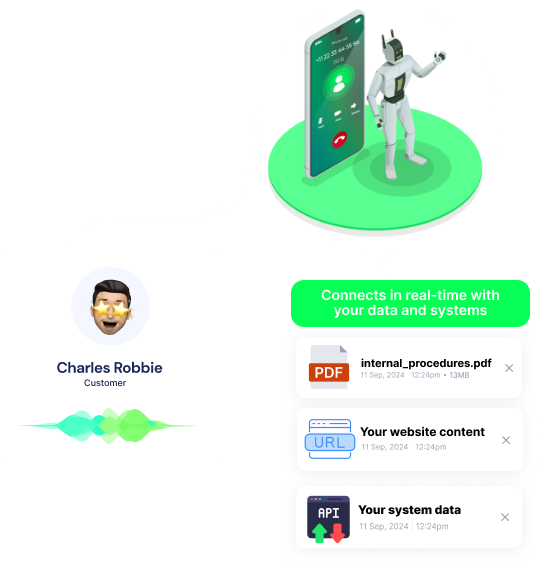
+250 tools ready to integrate with your AI agents flow in our no-code platform, similar to Zapier or Make.
Have a question that is not answered? You can contact us at
Have a question? Contact usA Reachinbox phone integration connects your email outreach data with AI calling workflows. It lets you trigger calls from events like replies, opens, interested leads, and completed campaigns so your team can follow up faster.
A Reachinbox auto dialer uses campaign activity to decide when an AI agent should call a lead. This helps sales teams contact prospects at the right moment instead of relying on manual follow-up.
Yes, Reachinbox AI dialer workflows can be triggered by events such as Email Opened, Reply Received, Email Bounced, and Lead Interested. That gives you a more responsive outbound process based on real engagement signals.
Reachinbox phone automation can launch AI calls, update lead handling logic, and align call timing with campaign schedules and analytics. It reduces manual work and helps teams respond to prospects with more consistency.
Reachinbox call automation can start when campaigns are launched, paused, completed, or updated. You can also use analytics and summaries to prioritize which segments should receive AI calls next.
Yes, a Reachinbox voice agent can call leads after replies or interest signals and handle first-touch qualification automatically. It can collect answers, route qualified prospects, and support booking actions without adding more work for your team.
Join thousands of businesses already automating their phone calls with our
Reachinbox integration.
You can get your assistant ready in few minutes.
The full path forward. Strategy, scripts, pricing, and the operating cadence agencies use to scale a white-label voice AI business. Free PDF, delivered to your inbox.