NEW Your $0 → $50K MRR voice AI playbook . The full path to a profitable AI voice agency. Free. Get it free
Moxie
Autocalls.ai

Connect Moxie with Autocalls.ai AI voice agents

Moxie AI Voice Call Automation

Turn Moxie updates into instant AI calls, follow-ups, and task-driven outreach. Keep freelancers and clients moving without manual dialing.

Sales and crm
4 Actions
22 Triggers
Autocalls Autocalls
Moxie phone integration for faster client follow-up
Smart Sync

Moxie phone integration for faster client follow-up

Connect Moxie triggers like Form Submitted, Meeting Scheduled, and Opportunity Created to AI calls that qualify leads and confirm next steps in minutes.
Use it with appointment booking and AI virtual receptionist workflows to reduce missed inquiries and keep your pipeline active.

  • 50% faster lead response
  • 24/7 client follow-up
Moxie auto dialer built for project and task updates
Auto Dialer

Moxie auto dialer built for project and task updates

When Task Created, Task Updated, or Client Task Approval triggers fire, AI voice agents can call clients, explain status changes, and collect confirmations automatically.
This call automation setup works well alongside AI call center automation and integrations to centralize communication without extra admin work.

  • 70% less manual calling
  • 95% consistent status delivery
Moxie call automation for invoices, payments, and projects
Revenue Boost

Moxie call automation for invoices, payments, and projects

Use Invoice Sent, Payment Received, Project Created, and Project Completed triggers to launch AI calls that remind clients, answer common questions, and improve collections.
Pair this phone integration with AI answering service and WhatsApp AI chatbot outreach for better coverage across voice and messaging.

  • 35% quicker payment follow-up
  • 3x more touchpoints per client

Available Actions

Powerful actions you can trigger with Moxie to automate your workflows

Custom API Call

Make a custom API call to a specific endpoint

Configuration Fields:
Required DYNAMIC
Body JSON
Method Required STATIC_DROPDOWN
Headers Required OBJECT

Authorization headers are injected automatically from your connection.

Timeout (in seconds) NUMBER
No Error on Failure CHECKBOX
Query Parameters Required OBJECT

Create a Task

Create a task in project.

Configuration Fields:
Name Required SHORT_TEXT
Subtasks ARRAY
Status Required DROPDOWN
Due Date DATE_TIME

ISO 8601 format date i.e. 2023-07-20

Priority NUMBER

Numeric priority for sorting in kanban.

Start Date DATE_TIME

ISO 8601 format date i.e. 2023-07-20

Assigned To ARRAY

email addresses of users in the workspace.

Client Name Required DROPDOWN

Exact match of a client name in your CRM

Description LONG_TEXT
Project Name Required DROPDOWN

Exact match of a project that is owned by the client.

Custom Values OBJECT

Create a Client

Create a new client record in moxie CRM.

Configuration Fields:
City SHORT_TEXT
Name Required SHORT_TEXT
Color SHORT_TEXT
Notes LONG_TEXT
Phone SHORT_TEXT
Tax ID SHORT_TEXT
Postal SHORT_TEXT
Archive ? Required CHECKBOX
Country SHORT_TEXT

ISO 3166-1 alpha-2 country code

Website SHORT_TEXT
Address 1 SHORT_TEXT
Address 2 SHORT_TEXT
Currency SHORT_TEXT

Valid 3-Letter ISO 4217 currency code.

Initials SHORT_TEXT
Locality SHORT_TEXT
Client Type Required STATIC_DROPDOWN
Lead Source SHORT_TEXT
Hourly Amount NUMBER
Stripe Client ID SHORT_TEXT
Pay Instructions LONG_TEXT
Rounding Increment NUMBER

Create a Project

Creates a new project in moxie CRM.

Configuration Fields:
Project Name Required SHORT_TEXT
Amount NUMBER
Due Date DATE_TIME

Please enter date in YYYY-MM-DD format.

Fee Type Required STATIC_DROPDOWN

One of: Hourly, Fixed Price, Retainer, Per Item.

Is amount taxable ? CHECKBOX
Start Date DATE_TIME

Please enter date in YYYY-MM-DD format.

Client Required DROPDOWN
Estimate maximum Amount NUMBER
Estimate minimum Amount NUMBER
Client Portal Access Required STATIC_DROPDOWN

One of: None, Overview, Full access, or Read only.

Show time worked in portal ? CHECKBOX
Autocalls Autocalls

Available Triggers

Events in Moxie that can automatically start your workflows

Invoice Sent

Triggered when an invoice is sent.

Configuration Fields:
Markdown MARKDOWN

- Go to the **Workspace Settngs -> Connected Apps -> Integration** section. - Under **Custom Integration** , click on **Add Rest Hook**. - Click on **Integrations** section. - In the endpoint field, paste the following URL: ```text {{webhookUrl}} ``` - Select the event as **`Invoice Sent`** and click on **Save**.

Task Created

Triggered when a new task is created.

Configuration Fields:
Markdown MARKDOWN

- Go to the **Workspace Settngs -> Connected Apps -> Integration** section. - Under **Custom Integration** , click on **Add Rest Hook**. - Click on **Integrations** section. - In the endpoint field, paste the following URL: ```text {{webhookUrl}} ``` - Select the event as **`Task Created`** and click on **Save**.

Task Deleted

Triggered when an existing task is deleted.

Configuration Fields:
Markdown MARKDOWN

- Go to the **Workspace Settngs -> Connected Apps -> Integration** section. - Under **Custom Integration** , click on **Add Rest Hook**. - Click on **Integrations** section. - In the endpoint field, paste the following URL: ```text {{webhookUrl}} ``` - Select the event as **`Task Deleted`** and click on **Save**.

Task Updated

Triggered when an existing task is updated.

Configuration Fields:
Markdown MARKDOWN

- Go to the **Workspace Settngs -> Connected Apps -> Integration** section. - Under **Custom Integration** , click on **Add Rest Hook**. - Click on **Integrations** section. - In the endpoint field, paste the following URL: ```text {{webhookUrl}} ``` - Select the event as **`Task Updated`** and click on **Save**.

Client Created

Triggered when a new client is created.

Configuration Fields:
Markdown MARKDOWN

- Go to the **Workspace Settngs -> Connected Apps -> Integration** section. - Under **Custom Integration** , click on **Add Rest Hook**. - Click on **Integrations** section. - In the endpoint field, paste the following URL: ```text {{webhookUrl}} ``` - Select the event as **`Client Created`** and click on **Save**.

Client Deleted

Triggered when an existing client is deleted.

Configuration Fields:
Markdown MARKDOWN

- Go to the **Workspace Settngs -> Connected Apps -> Integration** section. - Under **Custom Integration** , click on **Add Rest Hook**. - Click on **Integrations** section. - In the endpoint field, paste the following URL: ```text {{webhookUrl}} ``` - Select the event as **`Client Deleted`** and click on **Save**.

Client Updated

Triggered when an existing client is updated.

Configuration Fields:
Markdown MARKDOWN

- Go to the **Workspace Settngs -> Connected Apps -> Integration** section. - Under **Custom Integration** , click on **Add Rest Hook**. - Click on **Integrations** section. - In the endpoint field, paste the following URL: ```text {{webhookUrl}} ``` - Select the event as **`Client Updated`** and click on **Save**.

Form Submitted

Triggered when a new form is submitted.

Configuration Fields:
Markdown MARKDOWN

- Go to the **Workspace Settngs -> Connected Apps -> Integration** section. - Under **Custom Integration** , click on **Add Rest Hook**. - Click on **Integrations** section. - In the endpoint field, paste the following URL: ```text {{webhookUrl}} ``` - Select the event as **`Form Submitted`** and click on **Save**.

Meeting Updated

Triggered when an existing meeting is updated.

Configuration Fields:
Markdown MARKDOWN

- Go to the **Workspace Settngs -> Connected Apps -> Integration** section. - Under **Custom Integration** , click on **Add Rest Hook**. - Click on **Integrations** section. - In the endpoint field, paste the following URL: ```text {{webhookUrl}} ``` - Select the event as **`Meeting Updated`** and click on **Save**.

Project Created

Triggered when a new project is created.

Configuration Fields:
Markdown MARKDOWN

- Go to the **Workspace Settngs -> Connected Apps -> Integration** section. - Under **Custom Integration** , click on **Add Rest Hook**. - Click on **Integrations** section. - In the endpoint field, paste the following URL: ```text {{webhookUrl}} ``` - Select the event as **`Project Created`** and click on **Save**.

Project Updated

Triggered when an existing project is updated.

Configuration Fields:
Markdown MARKDOWN

- Go to the **Workspace Settngs -> Connected Apps -> Integration** section. - Under **Custom Integration** , click on **Add Rest Hook**. - Click on **Integrations** section. - In the endpoint field, paste the following URL: ```text {{webhookUrl}} ``` - Select the event as **`Project Updated`** and click on **Save**.

Payment Received

Triggered when a payment is received.

Configuration Fields:
Markdown MARKDOWN

- Go to the **Workspace Settngs -> Connected Apps -> Integration** section. - Under **Custom Integration** , click on **Add Rest Hook**. - Click on **Integrations** section. - In the endpoint field, paste the following URL: ```text {{webhookUrl}} ``` - Select the event as **`Payment Received`** and click on **Save**.

Meeting Cancelled

Triggered when a meeting is cancelled.

Configuration Fields:
Markdown MARKDOWN

- Go to the **Workspace Settngs -> Connected Apps -> Integration** section. - Under **Custom Integration** , click on **Add Rest Hook**. - Click on **Integrations** section. - In the endpoint field, paste the following URL: ```text {{webhookUrl}} ``` - Select the event as **`Meeting Cancelled`** and click on **Save**.

Meeting Scheduled

Triggered when a new meeting is scheduled.

Configuration Fields:
Markdown MARKDOWN

- Go to the **Workspace Settngs -> Connected Apps -> Integration** section. - Under **Custom Integration** , click on **Add Rest Hook**. - Click on **Integrations** section. - In the endpoint field, paste the following URL: ```text {{webhookUrl}} ``` - Select the event as **`Meeting Scheduled`** and click on **Save**.

Project Completed

Triggered when an existing project is completed.

Configuration Fields:
Markdown MARKDOWN

- Go to the **Workspace Settngs -> Connected Apps -> Integration** section. - Under **Custom Integration** , click on **Add Rest Hook**. - Click on **Integrations** section. - In the endpoint field, paste the following URL: ```text {{webhookUrl}} ``` - Select the event as **`Project Completed`** and click on **Save**.

Time Entry Created

Triggered when a new time entry is created.

Configuration Fields:
Markdown MARKDOWN

- Go to the **Workspace Settngs -> Connected Apps -> Integration** section. - Under **Custom Integration** , click on **Add Rest Hook**. - Click on **Integrations** section. - In the endpoint field, paste the following URL: ```text {{webhookUrl}} ``` - Select the event as **`Time Entry Created`** and click on **Save**.

Time Entry Deleted

Triggered when an existing time entry is deleted.

Configuration Fields:
Markdown MARKDOWN

- Go to the **Workspace Settngs -> Connected Apps -> Integration** section. - Under **Custom Integration** , click on **Add Rest Hook**. - Click on **Integrations** section. - In the endpoint field, paste the following URL: ```text {{webhookUrl}} ``` - Select the event as **`Time Entry Deleted`** and click on **Save**.

Time Entry Updated

Triggered when an existing time entry is updated.

Configuration Fields:
Markdown MARKDOWN

- Go to the **Workspace Settngs -> Connected Apps -> Integration** section. - Under **Custom Integration** , click on **Add Rest Hook**. - Click on **Integrations** section. - In the endpoint field, paste the following URL: ```text {{webhookUrl}} ``` - Select the event as **`Time Entry Updated`** and click on **Save**.

Opportunity Created

Triggered when a new pipeline opportunity is created.

Configuration Fields:
Markdown MARKDOWN

- Go to the **Workspace Settngs -> Connected Apps -> Integration** section. - Under **Custom Integration** , click on **Add Rest Hook**. - Click on **Integrations** section. - In the endpoint field, paste the following URL: ```text {{webhookUrl}} ``` - Select the event as **`Opportunity Created`** and click on **Save**.

Opportunity Deleted

Triggered when an existing pipeline opportunity is deleted.

Configuration Fields:
Markdown MARKDOWN

- Go to the **Workspace Settngs -> Connected Apps -> Integration** section. - Under **Custom Integration** , click on **Add Rest Hook**. - Click on **Integrations** section. - In the endpoint field, paste the following URL: ```text {{webhookUrl}} ``` - Select the event as **`Opportunity Deleted`** and click on **Save**.

Opportunity Updated

Triggered when an existing opportunity is updated.

Configuration Fields:
Markdown MARKDOWN

- Go to the **Workspace Settngs -> Connected Apps -> Integration** section. - Under **Custom Integration** , click on **Add Rest Hook**. - Click on **Integrations** section. - In the endpoint field, paste the following URL: ```text {{webhookUrl}} ``` - Select the event as **`Opportunity Updated`** and click on **Save**.

Client Task Approval

Triggered when a task is moved to client approval.

Configuration Fields:
Markdown MARKDOWN

- Go to the **Workspace Settngs -> Connected Apps -> Integration** section. - Under **Custom Integration** , click on **Add Rest Hook**. - Click on **Integrations** section. - In the endpoint field, paste the following URL: ```text {{webhookUrl}} ``` - Select the event as **`Client Task Approval`** and click on **Save**.

Autocalls Autocalls

Examples of automation flows

Real-world examples of how businesses use Moxie integration to automate workflows

Call new leads after form submissions

When a Moxie form is submitted, an AI voice agent calls the lead right away. This helps qualify interest fast and book the next conversation while intent is high.

Confirm meetings the moment they are scheduled

After a Meeting Scheduled trigger, the AI agent places a confirmation call with timing and key details. This reduces no-shows and gives clients a quick way to ask questions.

Turn new opportunities into outbound calls

When an Opportunity Created event appears in Moxie, the system launches a targeted sales call. Your team reaches prospects sooner without manually reviewing the pipeline.

Notify clients about task approval needs

When Client Task Approval is triggered, an AI agent calls the client with a clear update and request. This speeds up approvals and keeps projects moving without back-and-forth emails.

Follow up on invoices with voice reminders

As soon as an invoice is sent, AI calling can deliver a polite payment reminder and answer common billing questions. This keeps collections active without adding manual work.

Create clients and projects from call outcomes

After a successful qualification call, the workflow can create a new client or project in Moxie automatically. This saves admin time and keeps records updated after every conversation.

Integrate with popular tools using our no-code platform

Easily manage AI voice agents without the need for programming skills.

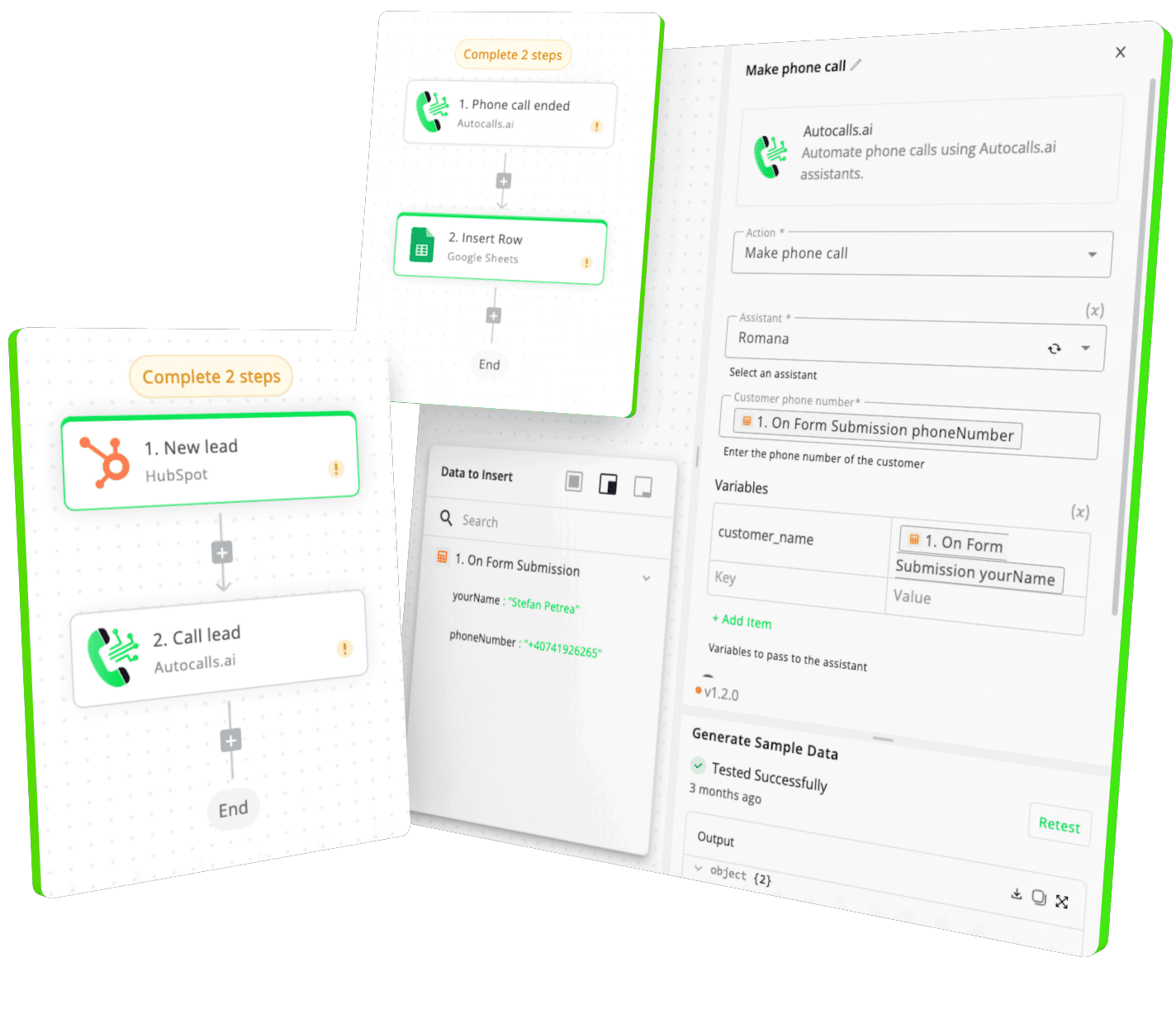
Integrate with popular tools such as HubSpot, GoHighLevel, Zoho, Cal.com & +250 more and build automations using drag and drop.

Autocalls

+250 tools ready to integrate with your AI agents flow in our no-code platform, similar to Zapier or Make.

Autocalls
Similar integrations with Moxie

Frequently Asked Questions 👍

Have a question that is not answered? You can contact us at

Have a question? Contact us

A Moxie phone integration connects your CRM events to AI voice calls, so actions happen automatically when records change. You can trigger outreach from forms, meetings, opportunities, invoices, and projects without relying on manual dialing.

A Moxie auto dialer helps you call leads, clients, and prospects as soon as important CRM events happen. That means faster follow-up, fewer missed opportunities, and less time spent on repetitive outreach.

Yes, Moxie AI dialer workflows can support both sales outreach and service communication. You can trigger calls from Opportunity Created, Meeting Scheduled, Task Updated, or Invoice Sent to keep every stage moving.

Moxie phone automation can handle lead qualification calls, meeting confirmations, payment reminders, project updates, and approval follow-ups. It helps teams respond faster while keeping communication consistent across every client record.

Moxie call automation launches calls the moment a trigger occurs, such as a form submission or new opportunity. This removes delays between CRM activity and outreach, which can improve contact rates and conversion speed.

Yes, a Moxie voice agent can be part of workflows that create clients, create projects, create tasks, or send custom API calls based on call outcomes. This keeps your CRM current and reduces admin after each conversation.

image image image

Ready to integrate Moxie with AI voice calling agents?

Join thousands of businesses already automating their phone calls with our Moxie integration.
You can get your assistant ready in few minutes.

Autocalls