Connect Google Drive with Autocalls.ai AI voice agents
Connect Google Drive to your AI voice agents to organize call files, documents, and follow-up records automatically. Keep every conversation tied to the right file without manual work.
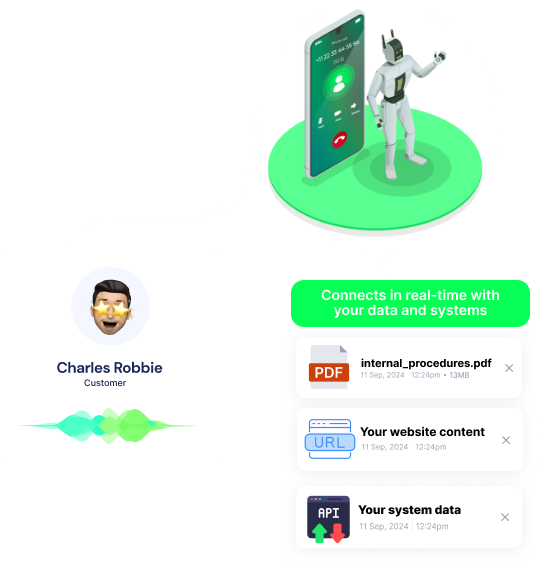
Let your AI agent search folders, read selected files, and pull the right document while calls are still active.
That means quicker answers, better AI answering service workflows, and smoother appointment booking without switching tools.
After a call, your workflow can upload files, create new text files, save documents as PDF, and move them into the right folders automatically.
This gives teams a clean audit trail for sales, support, and AI call center automation while keeping records ready for your integrations stack.
Set public access only when needed, update permissions for teams, or remove access as workflows change across campaigns and departments.
This helps your AI cold calling and white-label platform operations share files safely without extra admin work.
Get a hands-on experience by trying a free demo call. Fill in your details, and our AI representative will call you instantly.
Try now a free AI call✓ No credit card required ✓ No commitment
Powerful actions you can trigger with Google Drive to automate your workflows
Read a selected file from google drive file
File ID coming from | New File -> id |
List files from a Google Drive folder
Folder ID coming from | New Folder -> id | (or any other source)
Download all file contents in a list
Include new files that have been trashed.
Determines if folders from Team Drives should be included in the results.
Search a Google Drive folder for files/sub-folders
(Optional) Choose between files and folders.
Value of the field of file/folder to search for.
The operator to create criteria.
The Query term or field of file/folder to search upon.
Determines if folders from Team Drives should be included in the results.
Duplicate a file from Google Drive. Returns the new file ID.
The name of the new file
The ID of the file to duplicate
The ID of the folder where the file will be duplicated
If left unselected the file will be duplicated as it is
Determines if folders from Team Drives should be included in the results.
Make a custom API call to a specific endpoint
Authorization headers are injected automatically from your connection.
Save a document as PDF in a Google Drive folder
The name of the new file (do not include the extension)
The ID of the folder where the file will be exported
The ID of the document to export
Determines if folders from Team Drives should be included in the results.
Set public access for a file or folder
The ID of the file or folder to update permissions for
Move a file to the trash in your Google Drive
The ID of the file to trash
Determines if folders from Team Drives should be included in the results.
Delete permanently a file from your Google Drive
The ID of the file to delete
Determines if folders from Team Drives should be included in the results.
Removes a role from an user for a file or folder
The ID of the file or folder to update permissions for
The email address of the user to update permissions for
The role to remove from user.
Update permissions for a file or folder
The ID of the file or folder to update permissions for
The email address of the user to update permissions for
The role to grant to user. See more at: https://developers.google.com/drive/api/guides/ref-roles
Send an email to the user to notify them of the new permissions
Upload a file in your Google Drive
The file URL or base64 to upload
The name of the file
Determines if folders from Team Drives should be included in the results.
Create a new text file in your Google Drive from text
The text content to add to file
The name of the new text file
Select file type
Determines if folders from Team Drives should be included in the results.
Moves a file from one folder to another.
You can use **Search Folder/File** action to retrieve ID.
Determines if folders from Team Drives should be included in the results.
Create a new empty folder in your Google Drive
The name of the new folder
Determines if folders from Team Drives should be included in the results.
Get a file folder for files/sub-folders
The Id of the file/folder to search for.
Determines if folders from Team Drives should be included in the results.
Events in Google Drive that can automatically start your workflows
Trigger when a new file is uploaded.
Determines if folders from Team Drives should be included in the results.
Include the file content in the output. This will increase the time taken to fetch the files and might cause issues with large files.
Trigger when a new folder is created or uploaded.
Determines if folders from Team Drives should be included in the results.
Real-world examples of how businesses use Google Drive integration to automate workflows
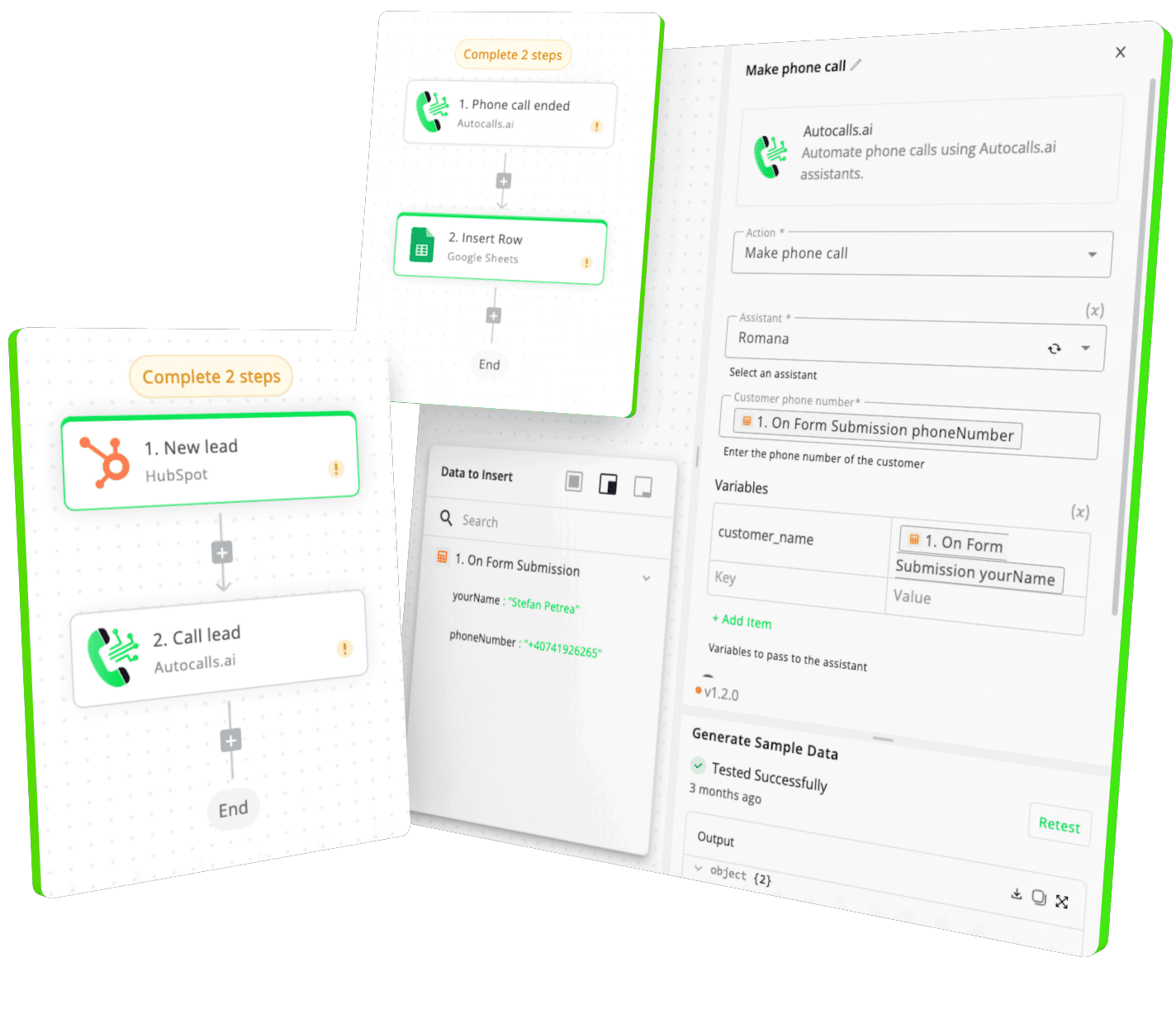
When a call ends, the workflow creates a new text file and uploads it to Google Drive. Your team gets searchable call notes in the right folder instantly.
A new file in Google Drive can trigger a voice workflow for outreach or status updates. This helps teams react faster when contracts, forms, or lead files arrive.
Your AI agent can search a folder and read a selected file before giving an answer. This improves accuracy when customers ask about stored documents or account records.
After booking is confirmed, the workflow saves a document as PDF in Google Drive automatically. Staff can review organized appointment files without manual exporting.
New folders can trigger setup workflows for outreach teams and active campaigns. Files can then be moved, duplicated, or updated to match each call operation.
When a file is uploaded, the workflow can update permissions or set public access based on the use case. Teams share only what is needed while keeping sensitive files protected.
Easily manage AI voice agents without the need for programming skills.
Integrate with popular tools such as HubSpot, GoHighLevel, Zoho, Cal.com & +250 more and build automations using drag and drop.
+250 tools ready to integrate with your AI agents flow in our no-code platform, similar to Zapier or Make.
Have a question that is not answered? You can contact us at
Have a question? Contact usA Google Drive phone integration connects your file storage with AI voice workflows so documents can be found, saved, and shared automatically around each call. It helps teams keep call records organized and reduces manual admin after conversations.
A Google Drive auto dialer workflow can store call summaries, upload recordings or notes, and organize campaign files by folder after each outreach attempt. This makes follow-up faster and gives managers a clear record of activity.
Yes. Autocalls is built for no-code setup, so you can connect Google Drive actions and triggers to AI calling workflows without API complexity. You can build file-based automations for outreach, support, and scheduling in minutes.
Google Drive phone automation can create a new file, save a document as PDF, upload files, move files into folders, or update sharing permissions after a call. That keeps every interaction documented and easy to review later.
Google Drive call automation helps your AI voice agent work with real business files instead of isolated call data. It improves response quality, keeps records centralized, and supports better handoffs to human teams.
A Google Drive voice agent can search folders, list files, and read selected files to pull useful information during a live interaction. This helps the agent answer faster and gives callers more accurate updates.
Yes. Along with standard actions like upload, search, move, and permission updates, custom API calls can support more advanced Google Drive use cases. That gives teams more control when building tailored file workflows around AI calls.
Join thousands of businesses already automating their phone calls with our
Google Drive integration.
You can get your assistant ready in few minutes.
The full path forward. Strategy, scripts, pricing, and the operating cadence agencies use to scale a white-label voice AI business. Free PDF, delivered to your inbox.