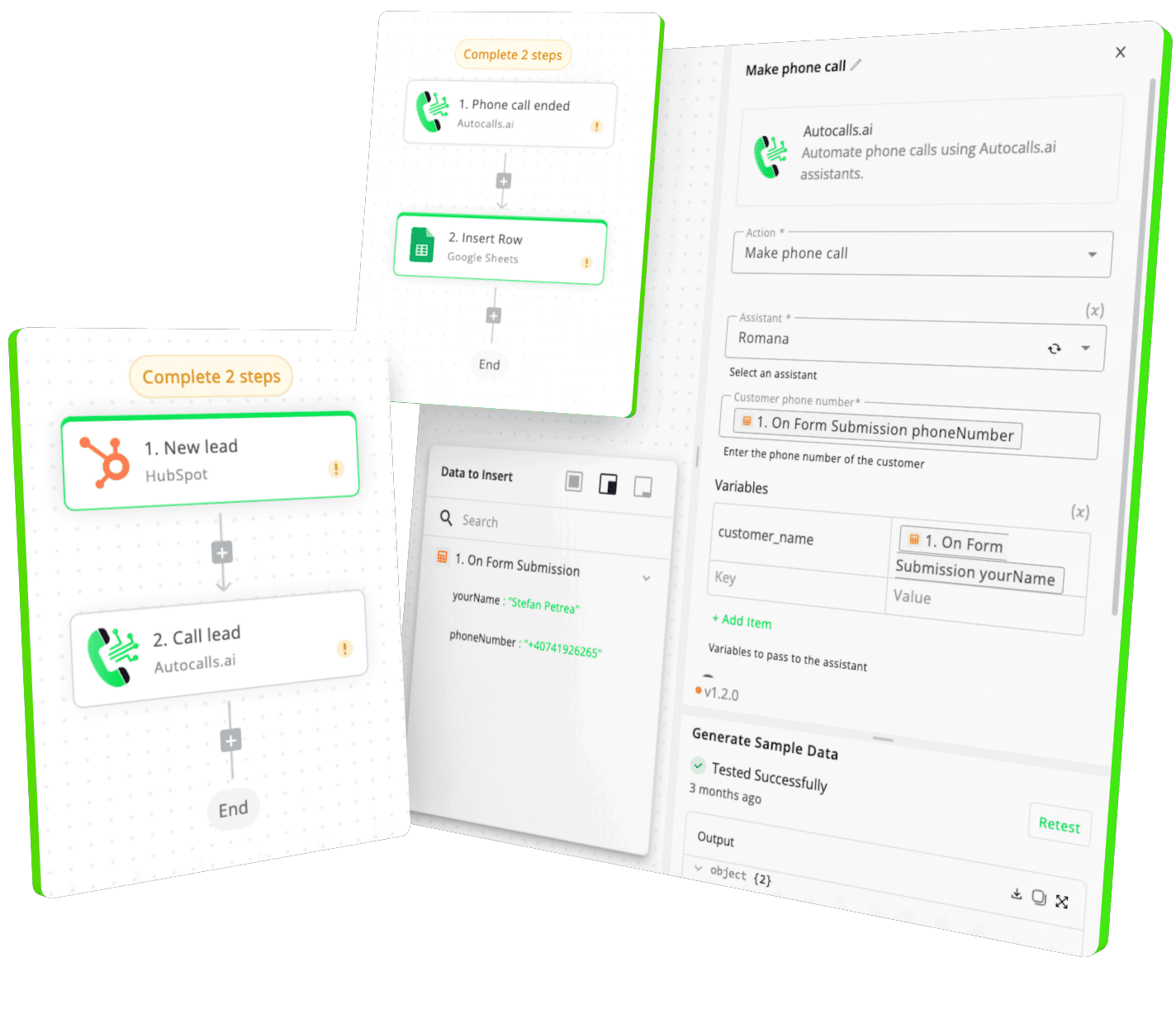
Connect ConvertKit with Autocalls.ai AI voice agents
Turn ConvertKit activity into instant AI calls, follow-ups, and lead qualification. Reach subscribers faster and move more contacts from email to booked conversations.
When a subscriber joins a form, clicks a link, or completes a sequence, your AI voice agent can call right away with personalized outreach. This helps teams qualify leads, recover interest, and drive more appointment booking from the same ConvertKit audience.
Use tags, forms, sequences, and purchases to trigger precise call automation without manual list checking. It is a practical way to connect email intent with an AI answering service that responds at the right moment.
As soon as a tag is added or removed, your workflow can start, pause, or reroute phone outreach based on subscriber status. That gives marketing and sales teams cleaner targeting for promotions, onboarding, upsells, and win-back campaigns.
Pair ConvertKit segments with AI-powered AI cold calling and post-call routing through your favorite integrations. You can keep campaigns moving without relying on agents to manually sort lists.
Create call workflows around real buyer signals like form subscriptions, purchases, and broadcast engagement. Your AI voice agent can confirm details, answer common questions, and direct contacts to the next best action faster than email alone.
It is ideal for creator funnels, paid offers, and service businesses that want stronger response rates through AI call center automation and multilingual outreach across supported languages.
Get a hands-on experience by trying a free demo call. Fill in your details, and our AI representative will call you instantly.
Try now a free AI call✓ No credit card required ✓ No commitment
Powerful actions you can trigger with ConvertKit to automate your workflows
Create a webhook automation
The event that will trigger the webhook
The URL that will be called when the webhook is triggered
The required parameter for the event
Returns a list of all tags
No additional configuration required
Delete a webhook automation
The webhook rule id
Create a tag
The name of the tag
Returns a list of all forms
No additional configuration required
Tag a subscriber
Choose the Tags
The email of the subscriber
The custom fields
The first name of the subscriber
Get a broadcast
The broadcast id
Returns a list of all purchases
Page number. Each page of results will contain up to 50 purchases.
Returns a list of all sequences
No additional configuration required
Returns a list of all custom fields
No additional configuration required
Creates a new purchase
The line item ID
The product ID
The SKU of the product
The tax
The name of the product
The total
The status of the purchase
The currency of the purchase
The discount
The quantity of the product
The shipping
The subtotal
The first name of the subscriber
The unit price of the product
The email address of the subscriber
The transaction ID
The transaction time
Get broadcast stats
The broadcast id
List all broadcasts
Page number. Each page of results will contain up to 50 broadcasts.
Create a new custom field
The custom fields
Delete a custom field
Update a custom field
The new label for the custom field
Create a new broadcast
Time that this broadcast should be sent; leave blank to create a draft broadcast. If set to a future time, this is the time that the broadcast will be scheduled to send.
The broadcast's email content - this can contain text and simple HTML markdown (such as h1, img or p tags)
The broadcast email's subject
Specifies whether or not this is a public post
An internal description of this broadcast
Specifies the time that this post was published (applicable only to public posts)
Sending email address; leave blank to use your account's default sending email address
Specify the ALT attribute of the public thumbnail image (applicable only to public posts)
Specify the URL of the thumbnail image to accompany the broadcast post (applicable only to public posts)
Name of the email template to use; leave blank to use your account's default email template
Delete a broadcast
The broadcast id
Update a broadcast
Time that this broadcast should be sent; leave blank to create a draft broadcast. If set to a future time, this is the time that the broadcast will be scheduled to send.
The broadcast's email content - this can contain text and simple HTML markdown (such as h1, img or p tags)
The broadcast email's subject
Specifies whether or not this is a public post
The broadcast id
An internal description of this broadcast
Specifies the time that this post was published (applicable only to public posts)
Sending email address; leave blank to use your account's default sending email address
Specify the ALT attribute of the public thumbnail image (applicable only to public posts)
Specify the URL of the thumbnail image to accompany the broadcast post (applicable only to public posts)
Name of the email template to use; leave blank to use your account's default email template
Add a subscriber to a form
Choose the Tags
The email of the subscriber
The custom fields
The first name of the subscriber
Returns data for a single purchase
The purchase ID
Returns a list of all subscribers
Return subscribers created before this date
Return subscribers created after this date
Page number. Each page of results will contain up to 50 subscribers.
Sort field
Sort order
Return subscribers updated before this date
Return subscribers updated after this date
The email of the subscriber
List form subscriptions
Update a subscriber
The custom fields
The first name of the subscriber
The email of the subscriber
The subscriber ID
Returns a list of all subscribed tags
The email of the subscriber
List all subscriptions to a tag
Each page of results will contain up to 50 tags.
Choose a Tag
Sort order
Subscriber state
Returns data for a single subscriber
The subscriber ID
Unsubscribe a subscriber
The email of the subscriber
Creates multiple purchases
The tax
The total
The status of the purchase
The currency of the purchase
The discount
The shipping
The subtotal
The first name of the subscriber
The email address of the subscriber
The transaction ID
The transaction time
The products
Returns data for a single subscriber
The email of the subscriber
Add a subscriber to a sequence
Choose the Tags
The email of the subscriber
The custom fields
The first name of the subscriber
Remove a tag from a subscriber by id
The tag to remove
The subscriber ID
Returns a list of all subscribed tags
The subscriber ID
List all subscriptions to a sequence
Remove a tag from a subscriber by email
The email of the subscriber
The tag to remove
Events in ConvertKit that can automatically start your workflows
Trigger when a link is clicked
The initiator value URL that will trigger the webhook
Trigger when a form is subscribed
Trigger when a purchase is created
No additional configuration required
Trigger when a product is purchased
The product ID
Trigger when a sequence is completed
Trigger when a subscriber bounced. This happens when an email is sent to a subscriber and the email bounces.
No additional configuration required
Trigger when a tag is added to a subscriber
Choose a Tag
Trigger when a sequence is subscribed
Trigger when a subscriber is activated. This happens when a subscriber confirms their subscription.
No additional configuration required
Trigger when a subscriber complained. This happens when a subscriber marks an email as spam.
No additional configuration required
Trigger when a tag is removed from a subscriber
Choose a Tag
Trigger when a subscriber is unsubscribed
No additional configuration required
Real-world examples of how businesses use ConvertKit integration to automate workflows
When a ConvertKit form is subscribed, an AI voice agent calls the lead within minutes. This helps qualify interest while intent is still high.
If a subscriber clicks a high-intent link, the workflow launches a personalized outbound call. Your team can focus on warm prospects instead of generic lists.
When a purchase is created or a product is purchased, the AI agent places a post-sale call automatically. This can confirm next steps, reduce confusion, and support upsells.
When a tag is added to a subscriber, your AI dialer starts the right outreach path. When the tag is removed, call automation can stop or switch the message.
If a subscriber unsubscribes or complains, the workflow can trigger a careful follow-up call or internal alert. This gives your team a faster way to protect revenue and learn why contacts drop off.
After a subscriber completes a sequence, the AI voice agent calls with a targeted next-step message. This is useful for consultations, demos, and closing conversations.
Easily manage AI voice agents without the need for programming skills.
Integrate with popular tools such as HubSpot, GoHighLevel, Zoho, Cal.com & +250 more and build automations using drag and drop.
+250 tools ready to integrate with your AI agents flow in our no-code platform, similar to Zapier or Make.
Have a question that is not answered? You can contact us at
Have a question? Contact usA ConvertKit phone integration connects your email marketing activity with AI-powered calling workflows. It lets you trigger outbound or inbound phone actions when subscribers join forms, click links, get tagged, buy products, or complete sequences.
A ConvertKit auto dialer can start calls automatically when a form is subscribed or when a tag is added to a subscriber. This helps you reach the right people faster and keep follow-up consistent without manual dialing.
Yes. A ConvertKit AI dialer is useful for welcoming new subscribers, following up after purchases, qualifying leads, and moving contacts toward booked calls. It gives creators and teams a faster way to turn email engagement into direct conversations.
ConvertKit phone automation can handle lead follow-ups, post-purchase calls, subscriber reactivation, event reminders, and sequence completion outreach. You can also route contacts based on tags, forms, broadcasts, and custom fields for more targeted calling.
Yes, ConvertKit call automation is especially effective for high-intent actions like link clicks, purchases, and new form subscriptions. Instead of waiting for a rep to follow up, the AI voice agent can call right away while interest is still fresh.
A ConvertKit voice agent helps you respond faster, qualify more leads, and keep outreach active around the clock. It can personalize calls using subscriber data and support use cases like booking, support, onboarding, and sales follow-up.
You can use the ConvertKit API through the integration to power actions like tagging subscribers, adding contacts to forms or sequences, and pulling subscriber or purchase data. With Autocalls, these workflows are configured in a no-code builder, so setup is much easier for non-technical teams.
Join thousands of businesses already automating their phone calls with our
ConvertKit integration.
You can get your assistant ready in few minutes.
The full path forward. Strategy, scripts, pricing, and the operating cadence agencies use to scale a white-label voice AI business. Free PDF, delivered to your inbox.